Product Updates

Andrey Shcherbina
·
Updated on
Every team has its own way of capturing meeting outcomes. After a sales call, a manager doesn't note "topics discussed" — they fill in specific qualification checkpoints from their team's playbook. After a candidate interview, an HR specialist doesn't compare "strengths" — they evaluate against competencies defined in the job description. After a user interview, a researcher doesn't extract "insights" — they map the conversation onto sections of their research guide.
Mymeet.ai's 11 built-in AI report templates cover the most common meeting types — but not every team's workflow fits a standard template. Each team has its own processes, and one-size-fits-all reports eventually stop delivering what's actually needed.
Our customer research shows that manually formatting meeting outcomes into a team's preferred structure — filling CRM by a checklist, mapping interviews to a guide, assembling a status report for leadership — takes 30 to 60 minutes per meeting. For someone running 5 meetings a day, that's a full working hour spent on text formatting.
That's why we've added Custom AI Reports to mymeet.ai. It's a builder where you describe what sections your meeting report should have and what the AI should analyze in each one. The template applies to any meeting in your workspace — new or already recorded.
In this article, we'll walk through how the feature works, how to create your first custom report, and how teams can put it to use.
What Custom AI Reports are
A new "AI Reports" section has appeared in the mymeet.ai side menu. It contains all available templates: 11 built-in ones from mymeet.ai and any custom templates your workspace has created. Any of them can be applied to a meeting — the system will generate a report following the structure you've chosen.
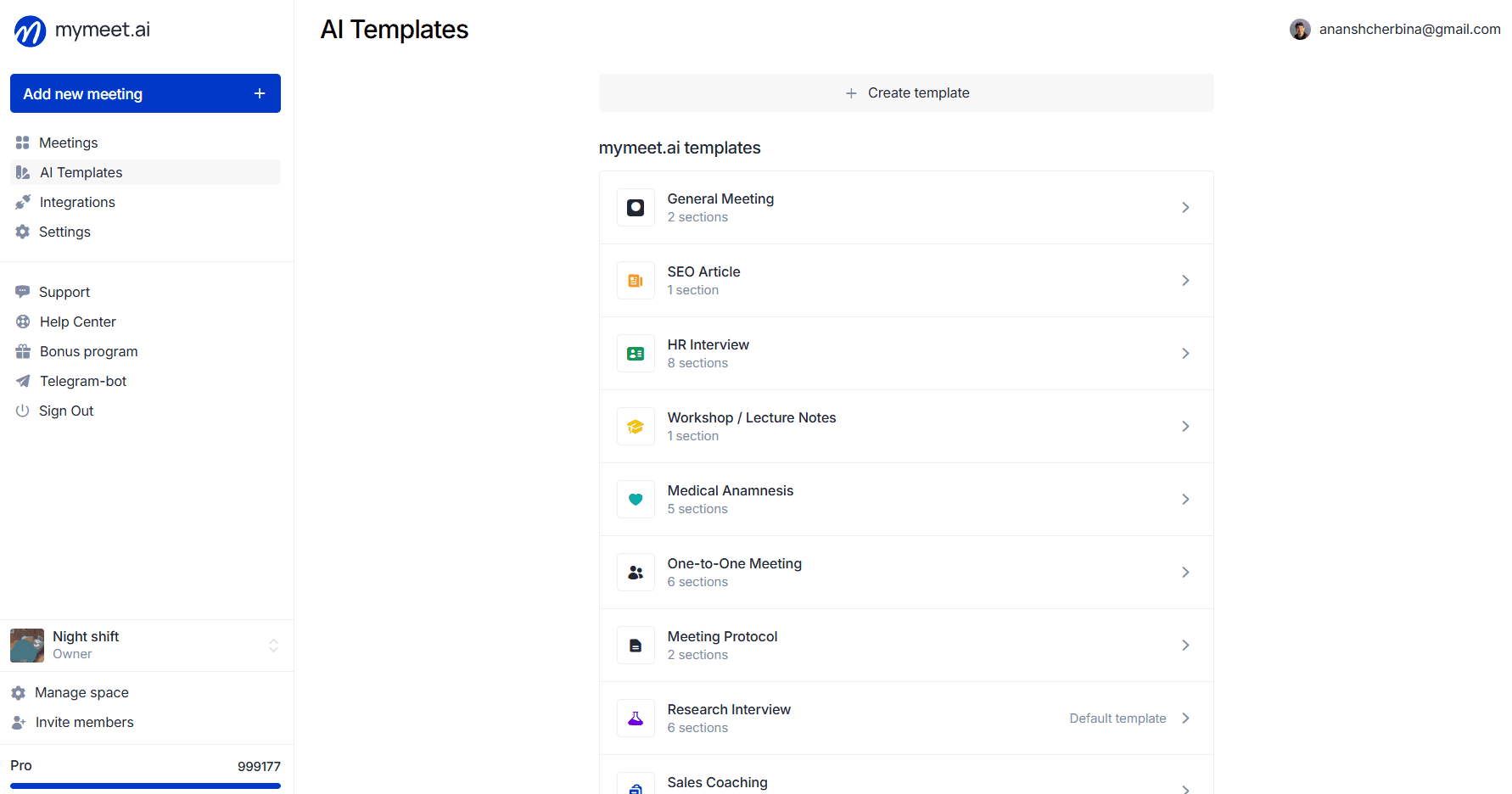
The built-in mymeet.ai templates work as before — they fit when you need a standard meeting summary: "Default meeting", "Client meeting", "Sales coaching", "HR interview", "Research", and others. Custom templates add flexibility: you can assemble a structure that fits your team's specific process and apply it to every meeting of that type.
How to create a custom report
Creation starts with the "Create template" button at the top of the section.
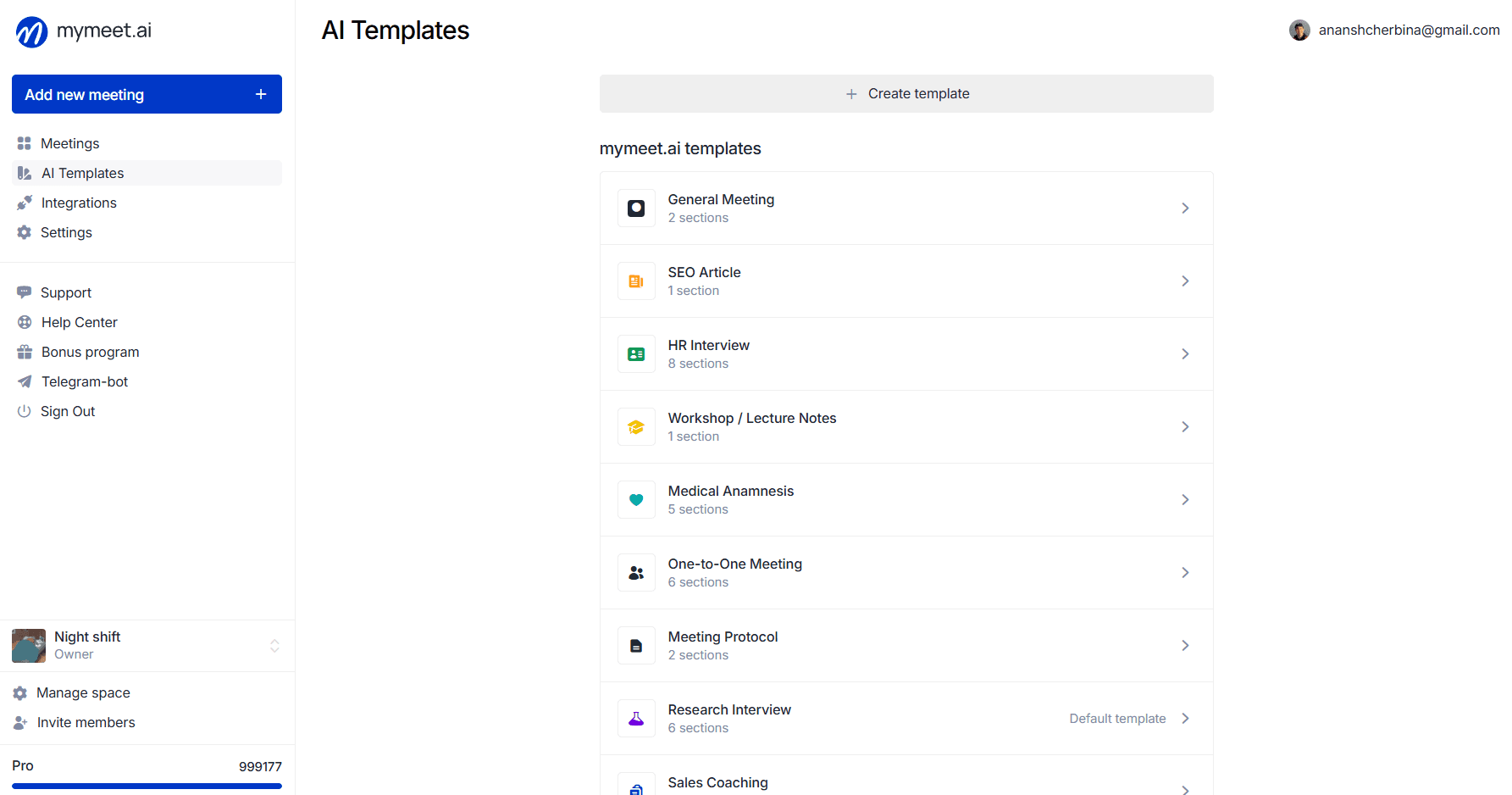
A form opens where you describe what your report should do. A placeholder in the field helps shape the prompt — for example: "I want a report that analyzes meetings by criteria: tone, key decisions, next steps."
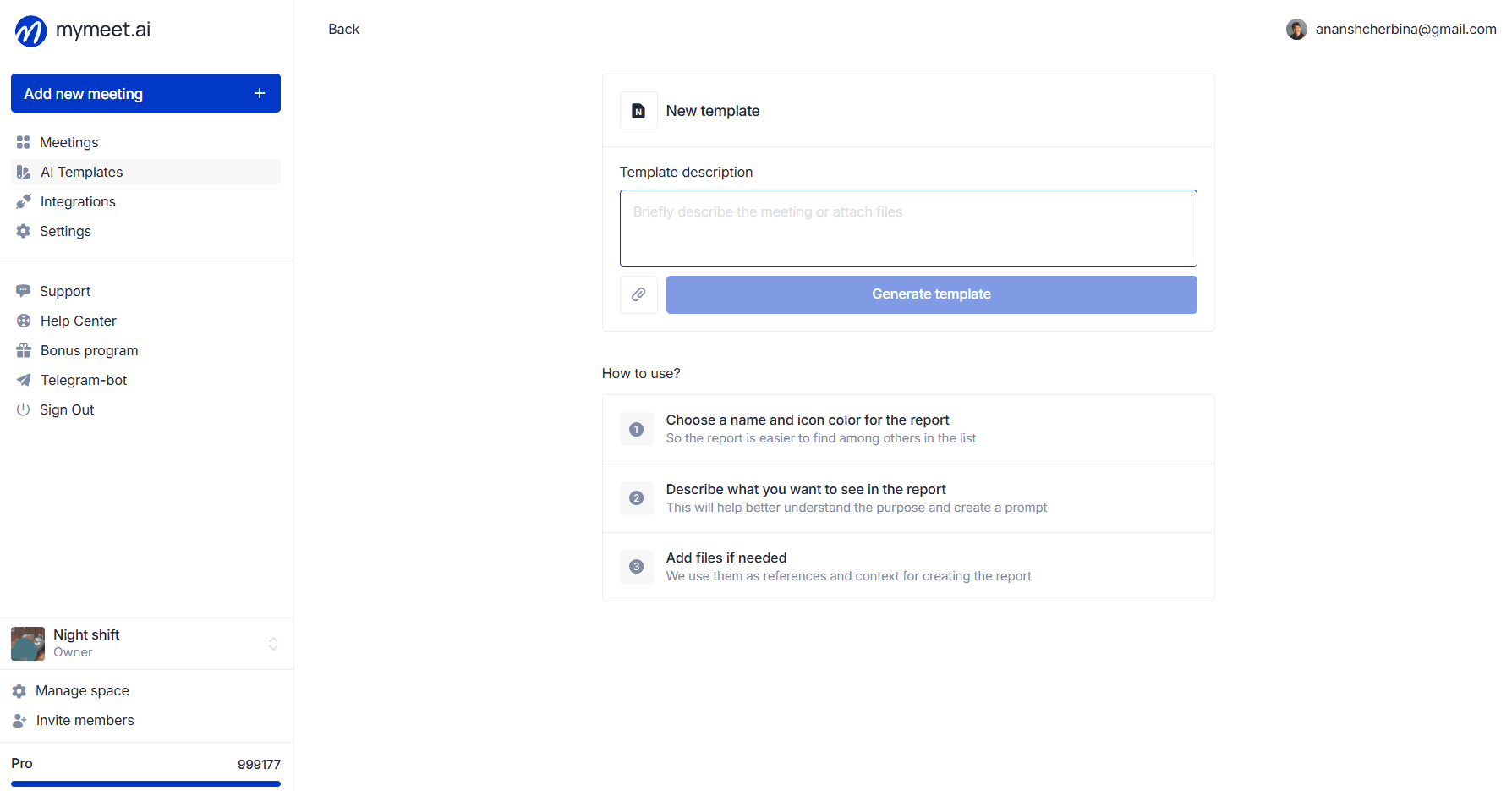
There are three ways to assemble a template.
1. From scratch — text only. Describe the report you need in the field. The more specific your phrasing, the more accurately the AI assembles the structure. You can specify: which sections should appear, what to focus on, how the result should be presented — lists, bullet points, paragraphs.
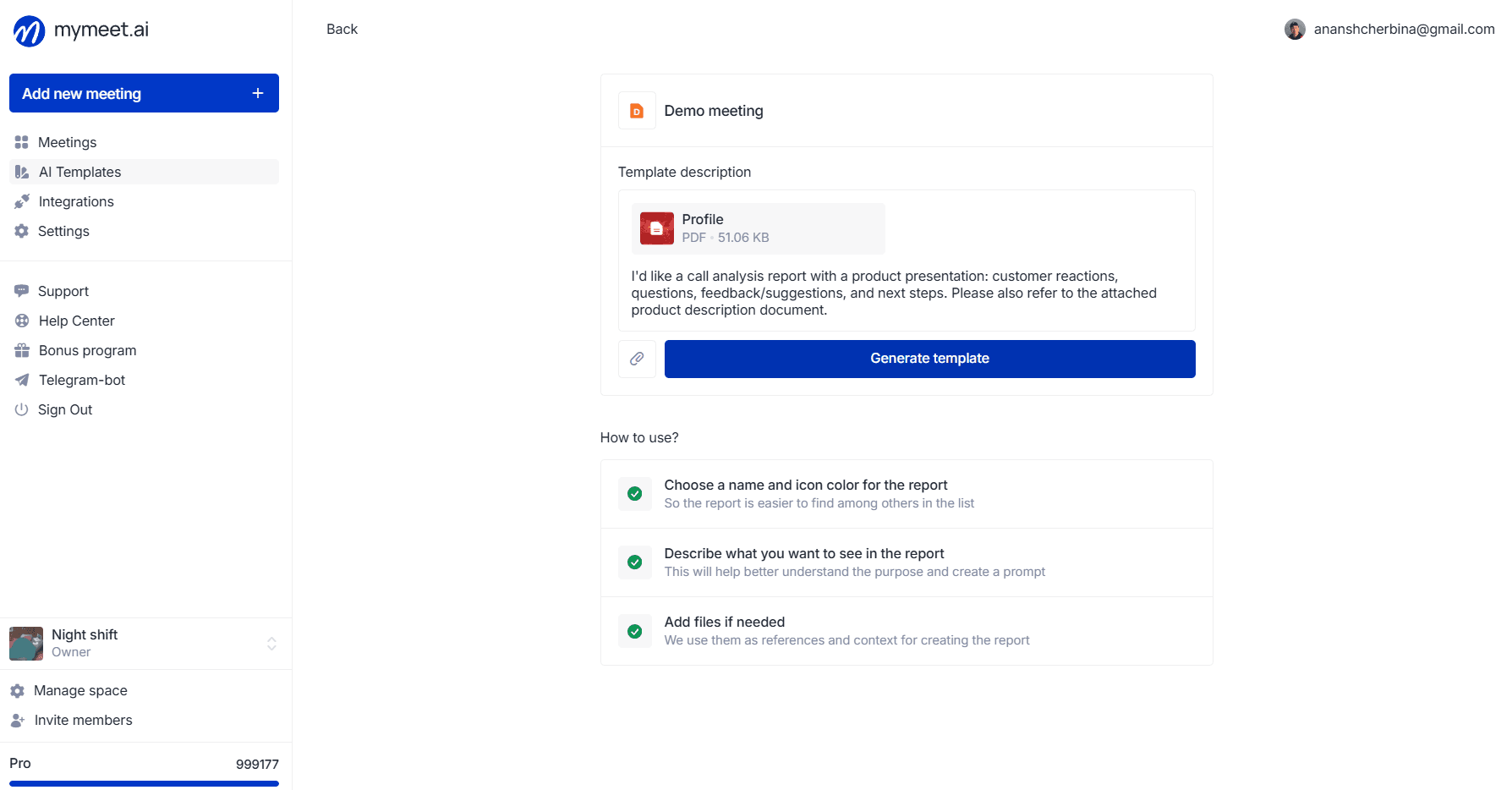
2. From scratch — with an attached document. If your team already has a format you want to receive reports in — a qualification checklist, a discovery interview template, a candidate evaluation guide, or an internal protocol — attach it as a file. The AI parses the document and expands its structure into template sections.
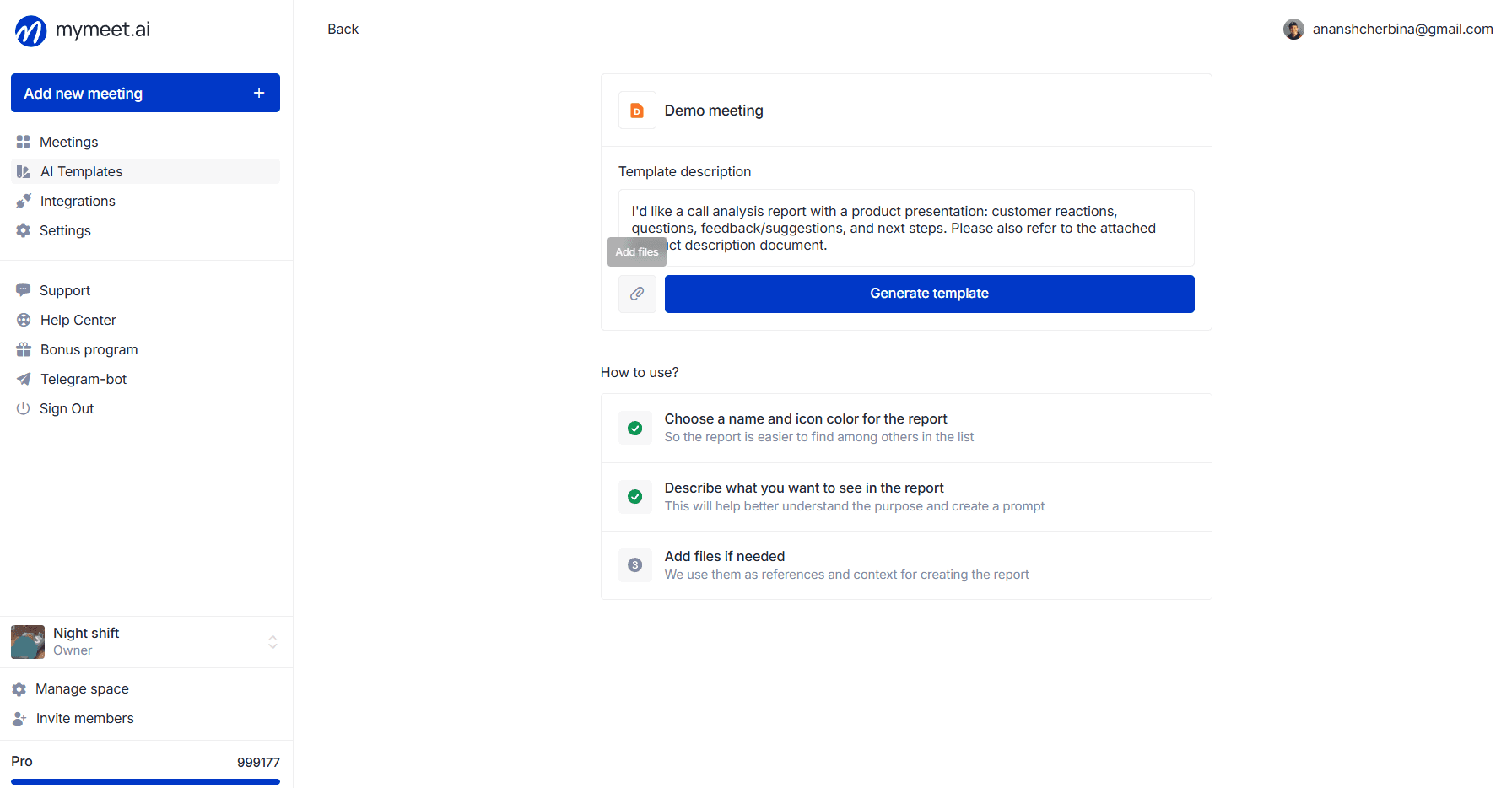
Files are attached through the paperclip icon next to the "Generate template" button. Supported: documents, checklists, form templates, job descriptions — any material from which the AI can understand the structure you need.
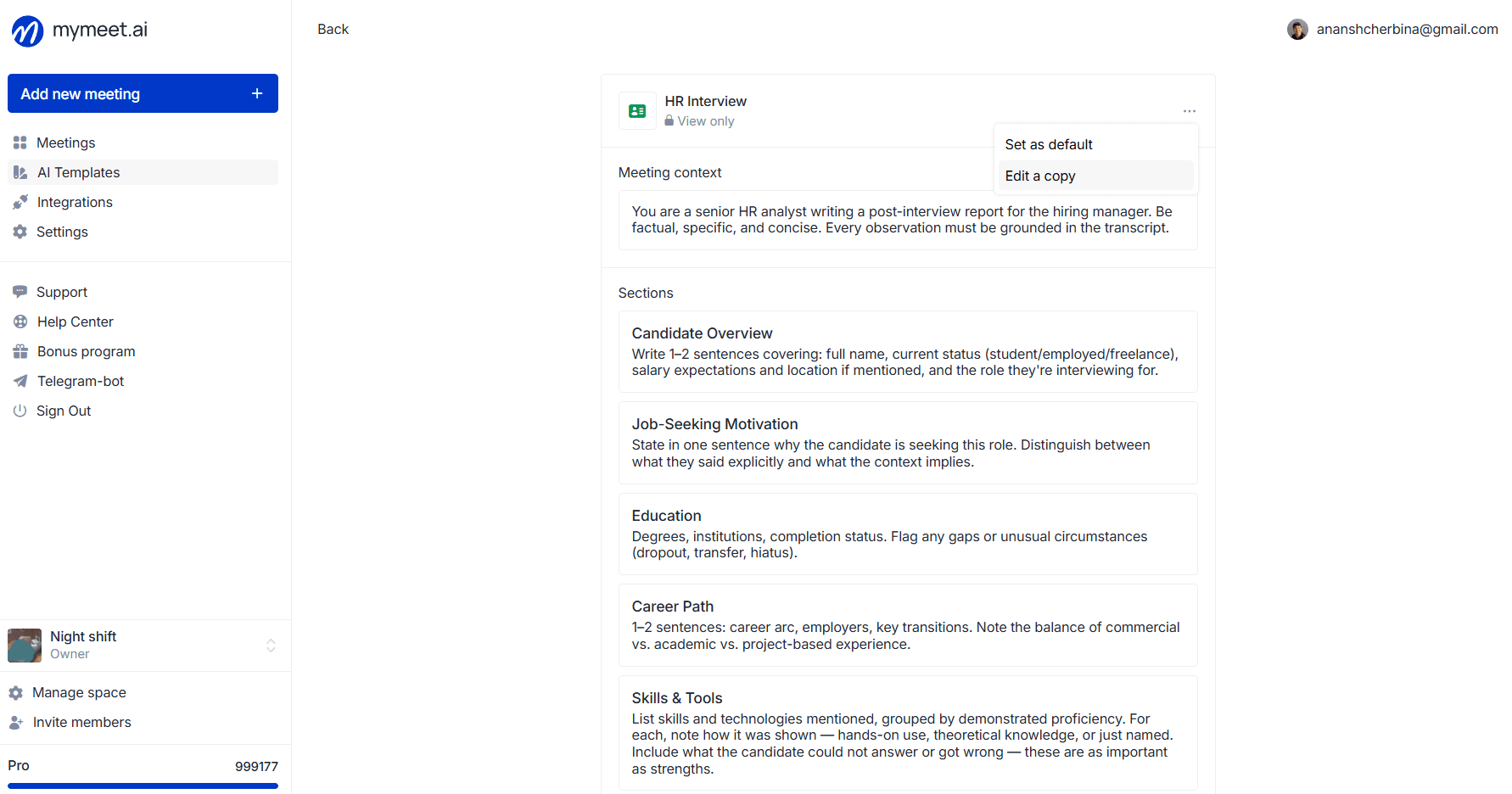
3. Based on a built-in mymeet.ai template. If one of the 11 built-in templates already has the right structure, there's no need to start from scratch. Open the template in the "mymeet.ai templates" block, click the menu (three dots), and select "Edit copy". A copy with the pre-filled structure appears in your section — you can adjust it to fit your needs while the original template stays unchanged.
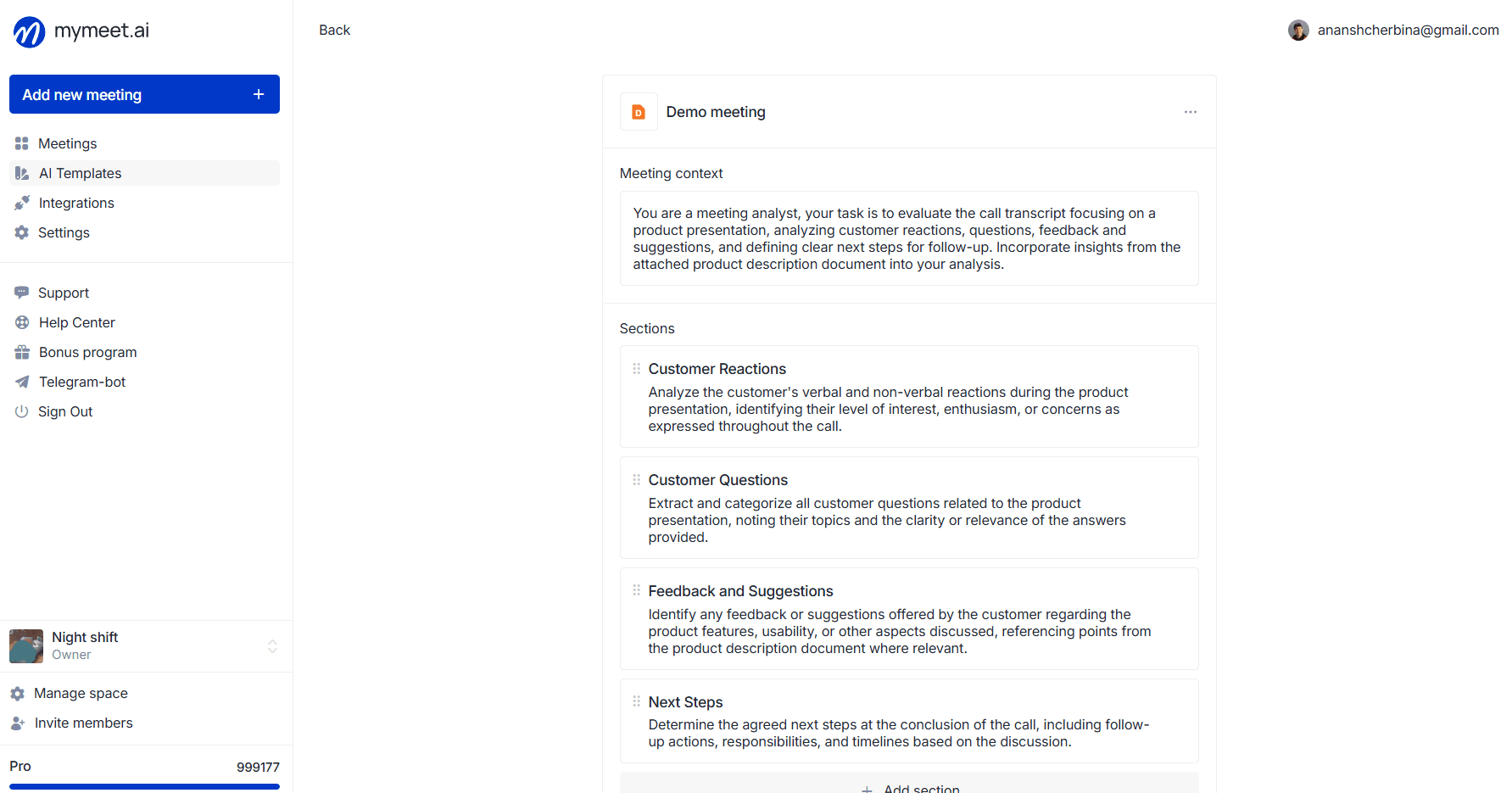
After clicking "Generate template", the AI expands your description into a structure — meeting context and a set of sections with instructions for each.
What's inside a template
Each custom template consists of two parts.
Meeting context — a general description of the situation. Here you explain who attends the meeting, what industry your team works in, what terminology is used. Context helps the AI interpret the conversation correctly and choose relevant phrasing. It can be edited at any time.
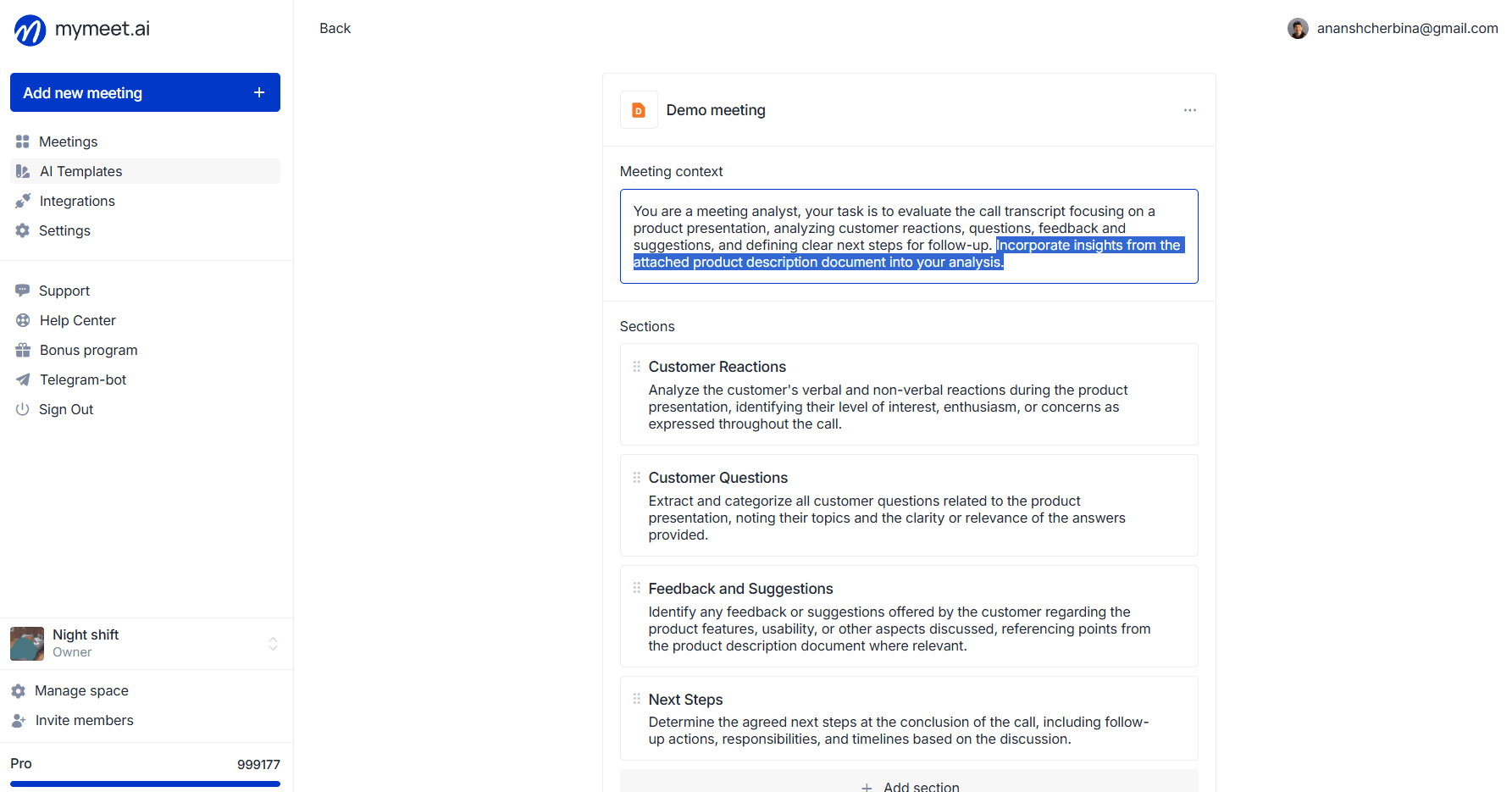
Sections — these are the blocks that structure the report. Each section has a name (the block heading in the final report) and a description (instructions for the AI on what exactly to put in that block).
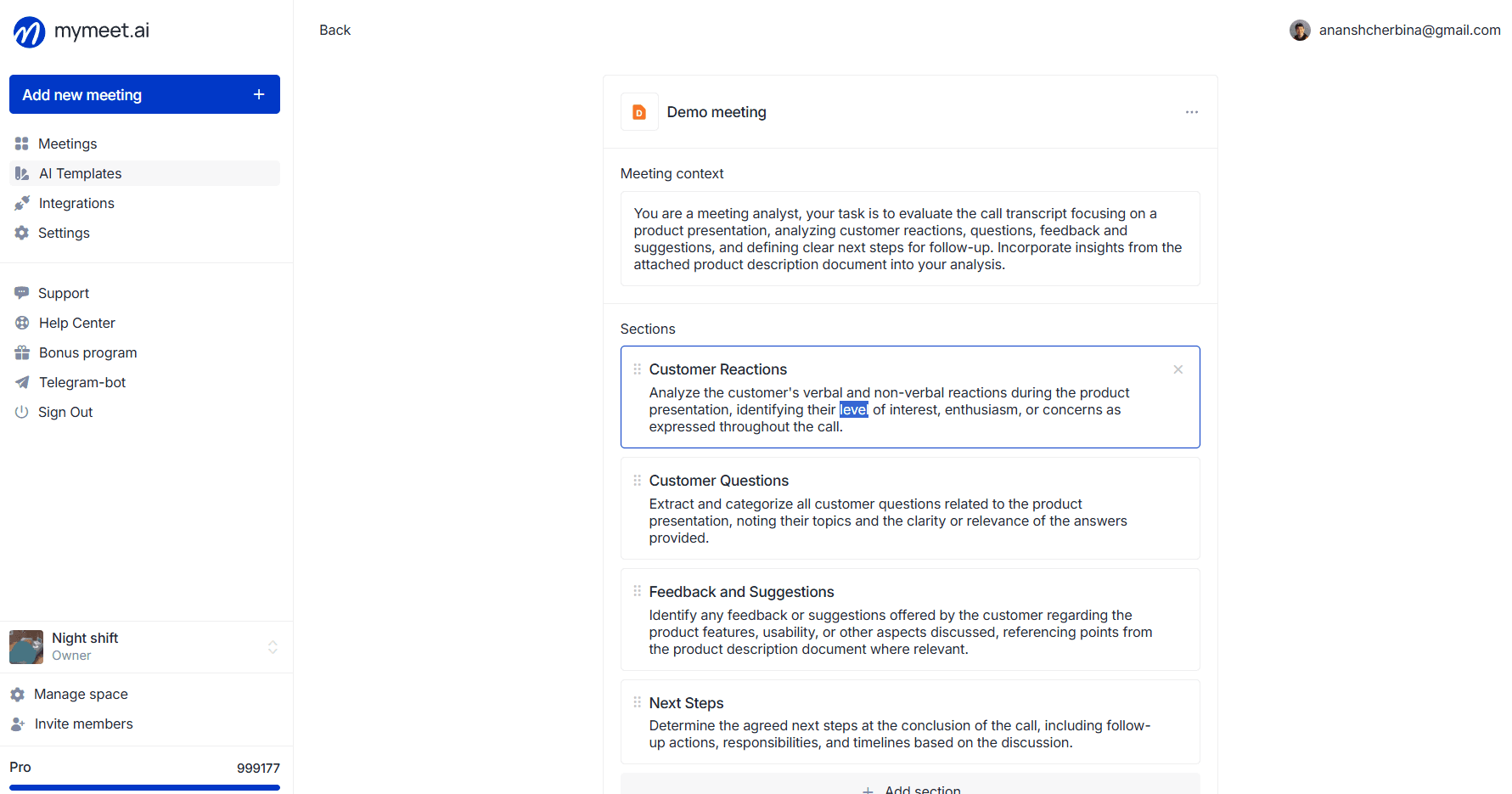
The more detailed and specific the section description — which data matters, what format the result should take, what to call out separately — the more accurately the AI fills it. A template can contain up to 30 sections, but for quality generation we recommend 10-15: any more, and the AI starts spreading attention thin across blocks.
Sections can be dragged, renamed, deleted, and added — all inline, without a separate editing form.
How templates work for the team
Custom templates are tied to the workspace — not to an individual user. That means the entire workspace works from a shared meeting-analysis structure.
Workspace owners and managers can create, edit, and delete templates. Members see templates in read-only mode and can apply them to their meetings.
Any custom template can be set as the workspace default through the three-dot menu → "Set as default". From that point, it will automatically apply to every new meeting, without manual selection each time.
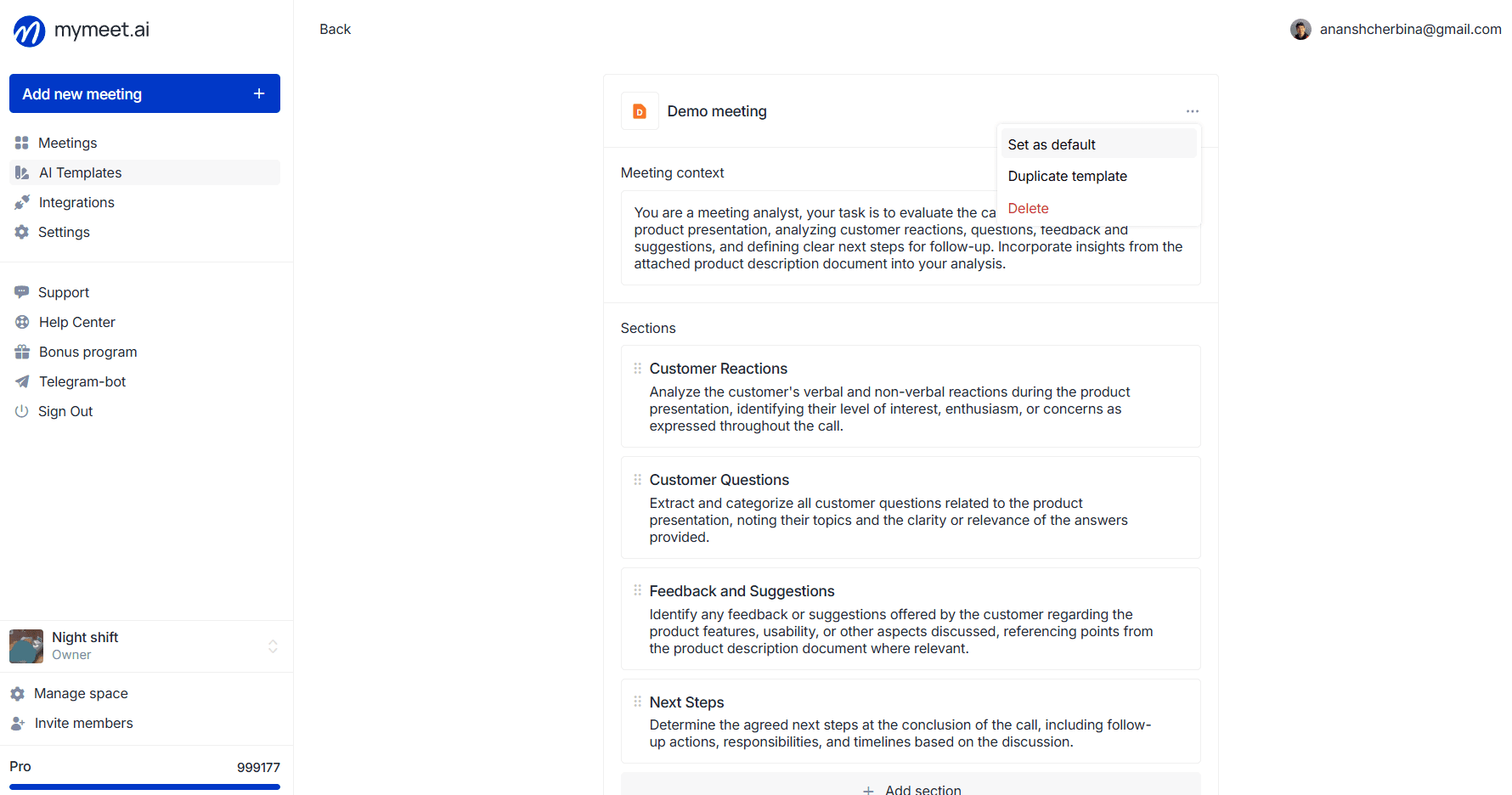
If a template needs to be modified while keeping the original — use "Duplicate template". A copy is created where you can experiment.
The feature is available on Pro and Business plans.
How teams put it to use
Custom AI Reports work for teams that already have their own format for capturing meeting outcomes — but used to assemble it manually after every meeting. A few common applications.
Sales: analyzing calls against a corporate checklist. Upload the qualification checklist your team uses — each item becomes a separate section in the report. After a client call, you get a ready-made structured card: which needs were voiced, which objections came up, where the qualification stopped, what to do next. No need to listen back through the recording to fill the CRM.
HR: evaluating candidates against a specific role. Attach the job description — the AI builds the report around competencies from that role, not a generic HR template. Especially useful when multiple positions are open in parallel, each with its own requirements.
Research: interviews following your own guide. If your team has a custom format for in-depth interviews with sections for pain points, insights, and hypotheses — the AI maps the transcript onto that structure. Across a series of interviews with different respondents, all reports come back in the same format, without manual coding.
Product teams: discovery, retro, and 1:1 in your own format. Every team has its own template for discovery debriefs, retros, or one-on-ones — bring it into mymeet.ai once, and every meeting from then on is captured consistently. This becomes especially important when running large rounds of discovery interviews during feature analysis.
Consulting and education: sessions against a checklist. When the work revolves around a repeatable format — a coaching session, a demo, an educational module — a custom template becomes a tool for standardization. Every consultant on the team receives reports in the same structure, with no drift in style or depth.
Getting started
Open the "AI Reports" section in the mymeet.ai side menu
Click "Create template"
Describe the format you need, or attach a file with your internal template
Edit the generated sections to fit your needs
Apply the template to your next meeting — or set it as the workspace default
Custom AI Reports are available to workspace owners and managers on Pro and Business plans.
Andrey Shcherbina