Product Updates

Andrey Shcherbina
·
Updated on

We've added 8 new AI report templates. Meeting reports are no longer built as generic notes — each one follows the specific format you need: daily standup, demo, retrospective, technical review — each with its own section structure and its own logic.
A template is selected before the meeting or right after recording. The AI rebuilds the report to match the chosen structure — sections, emphasis, and block order all change depending on the meeting type.
In this article, we'll walk through what's inside each of the eight templates, who they're for, and how to get started.
What AI Report Templates Are and How They Work
A template is a set of sections the AI uses to structure the meeting content. Instead of one generic set of notes, you get a document with the blocks that actually matter for that specific type of meeting. A template can be selected before the recording starts or right after — the AI report will rebuild itself around the chosen structure.
8 New Templates: Structure and Use Cases
All eight templates are built around standard business meeting formats — from daily standups to technical reviews. Here's what's inside each one.
Daily Standup — sections: task statuses, blockers, agreements. Built for daily standups — you can see who's working on what and what's preventing progress.
Demo — sections: audience reactions, questions, objections, next steps. The report captures not how the presentation went, but how it landed — useful for preparing for the next touchpoint.
Brainstorm — sections: ideas, participant suggestions, final decisions. Every option is captured; nothing gets lost in margin notes.
Backlog Grooming — sections: tasks, priorities, estimates, open questions. After the meeting, it's clear what's going into the sprint and why.
Project Sync — sections: task progress, risks, decisions made. A manager or PM gets a project status snapshot without having to transcribe an hour-long conversation.
Retrospective — sections: what worked well, what to change, action points with owners. Decisions don't get buried in the discussion.
Sprint Planning — sections: sprint goals, tasks, assignments by owner. A structured plan is ready as soon as the meeting ends.
Technical Review — sections: code or architecture notes, decisions made, technical debt. Feedback and decisions are separated — no need to read through the entire transcript to collect a list of revisions.
How to Select and Apply a Template to a Meeting
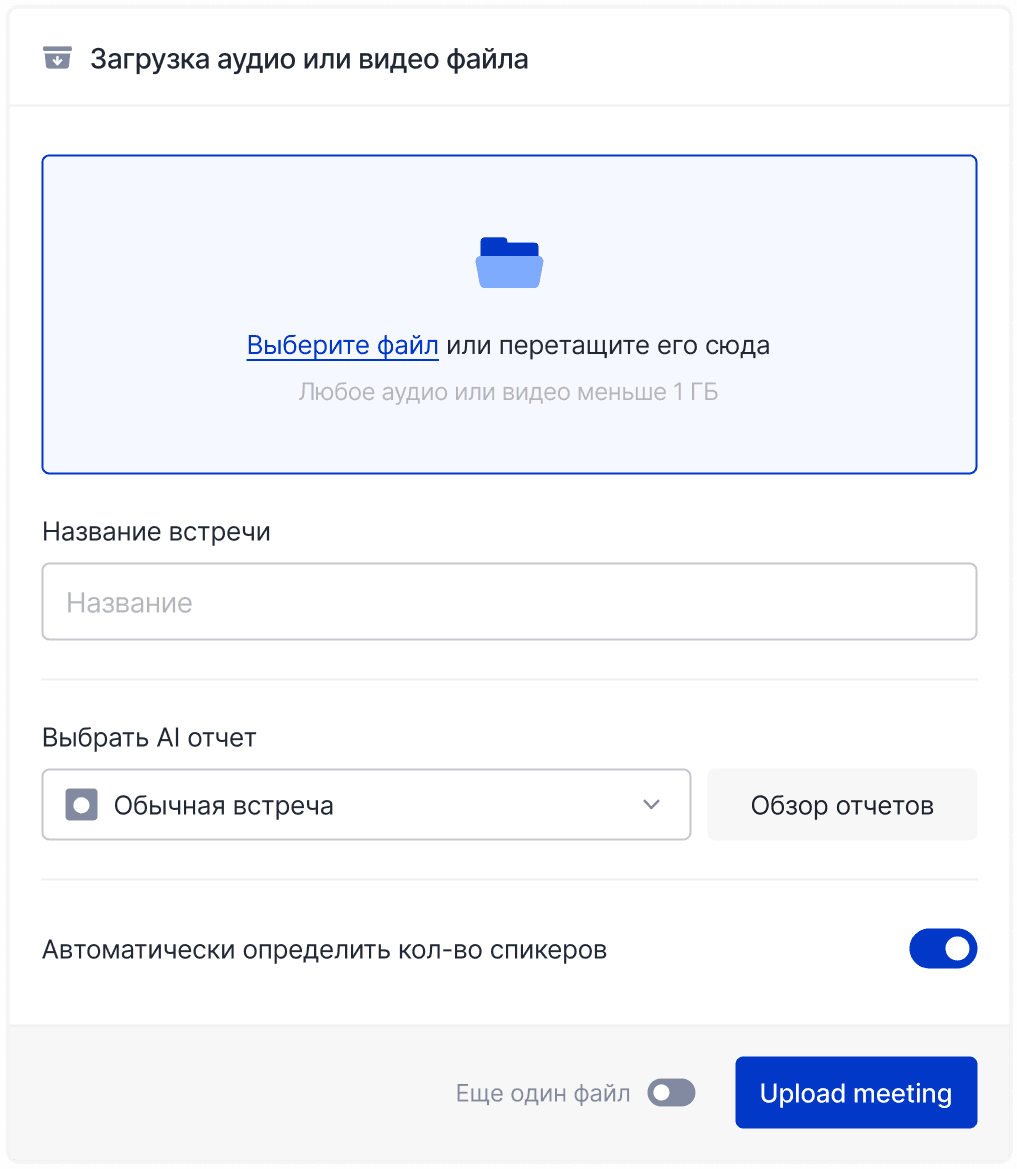
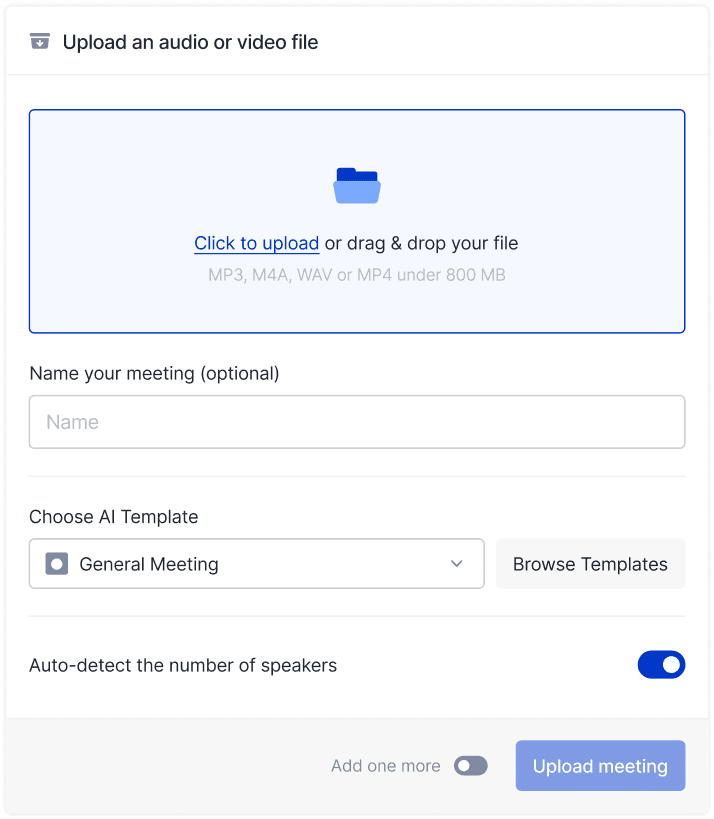
Templates are selected in the AI reports section — before recording starts or after. If you need to change the structure, you can switch templates at any point, including for meetings that have already taken place.
Here's how it works: open the meeting in mymeet.ai, go to the AI reports section, select the template you need from the list — the report will rebuild around the chosen structure. If you need a different structure, switch the template and the report updates automatically.
Who Benefits from AI Report Templates and When
Templates meet the needs of different teams — not just product teams. Here's what it looks like in practice.
Sales. Apply the Demo template to a client call recording — the output is a structured list of objections and agreements. Useful for handing off a deal or preparing for the next touchpoint.
Product teams. Retrospective, Sprint Planning, and Backlog Grooming — three templates that cover the standard product meeting cycle. Action points and tasks are extracted automatically.
Engineering. Technical Review captures notes and decisions separately — no need to re-read the entire transcript to compile a list of revisions.
Managers and PMs. Project Sync delivers a status snapshot in seconds — progress, risks, and decisions in one document.
Standup teams. The template outputs blockers and statuses in a single block — ready to share with the team immediately, no editing required.
How to Start Using AI Report Templates
Templates are available to all mymeet.ai users. No process changes needed to try them — just pick a template before your next meeting or apply one to a meeting that's already happened. On Pro and Business plans, any template can be used as a starting point and customized — adjust the section structure, add your own blocks.
Frequently Asked Questions About AI Report Templates
1. Can a template be applied to a past meeting?
Yes. A template can be selected or changed at any point — the report will rebuild around the new structure even for meetings that have already ended.
2. Can multiple templates be used for one meeting?
Only one template is active at a time. If you need a different structure — switch the template and the report updates automatically.
3. Are templates available to all users or only paid subscribers?
Templates are available to everyone. Using a template as the basis for your own custom report and adjusting its structure is available on Pro and Business plans.
4. What's the difference between a template and a custom AI report?
Templates are ready-made structures built for standard meeting types. Custom AI reports let you define exactly what output you want. Templates are simpler and faster; custom reports are more flexible.
5. How many templates are available in mymeet.ai in total?
There are currently 13 templates: 5 existing ones (general meeting, one-on-one, sales coach, meeting minutes, follow-up email) plus 8 new ones.
6. Can I create my own meeting template?
For a fully custom structure, use the custom AI reports section — there you can describe your own structure and attach an instruction file for the AI.
7. Do templates work with Zoom, Google Meet, and Teams?
Yes. Templates work with all meetings recorded through mymeet.ai — regardless of platform.
8. How does the AI decide what counts as a blocker versus a status in a standup?
The AI analyzes the context of statements: if a participant says a task can't move forward due to an external reason — that's a blocker. Explicit status markers ("in progress," "done," "not started") go into the corresponding section.
9. Can the report be edited after a template is applied?
Yes. The finished AI report can be edited manually — add, remove, or reword the content of any section.
10. Will new templates be added in the future?
Yes, we continue adding templates for new meeting types. If you have an idea for a template you need — reach out to support: hello@mymeet.ai.
Andrey Shcherbina