Product Updates

Radzivon Alkhovik
·
Updated on

After a sales call, the account manager opens the transcript and starts looking manually: did the client name a success metric, who in the company makes the decision, what criteria will they use to choose a vendor. A researcher finishing a round of user interviews combs through dozens of pages of text trying to find patterns and pull quotes. A customer success manager after the first onboarding call types up everything that was already said out loud — client goals, agreed next steps, ownership.
Each of these meetings has its own logic. A sales call needs qualification criteria. A UX interview needs insights and quotes. An onboarding call needs captured commitments. A generic meeting summary doesn't fit any of these.
Mymeet.аi already had built-in templates for product and engineering formats: daily standups, demos, retrospectives, sprint planning, and others. We've now added templates for sales, research, and client-facing work. This article covers each new template, how they work, and which teams they're built for.
What are AI report templates and how do they work
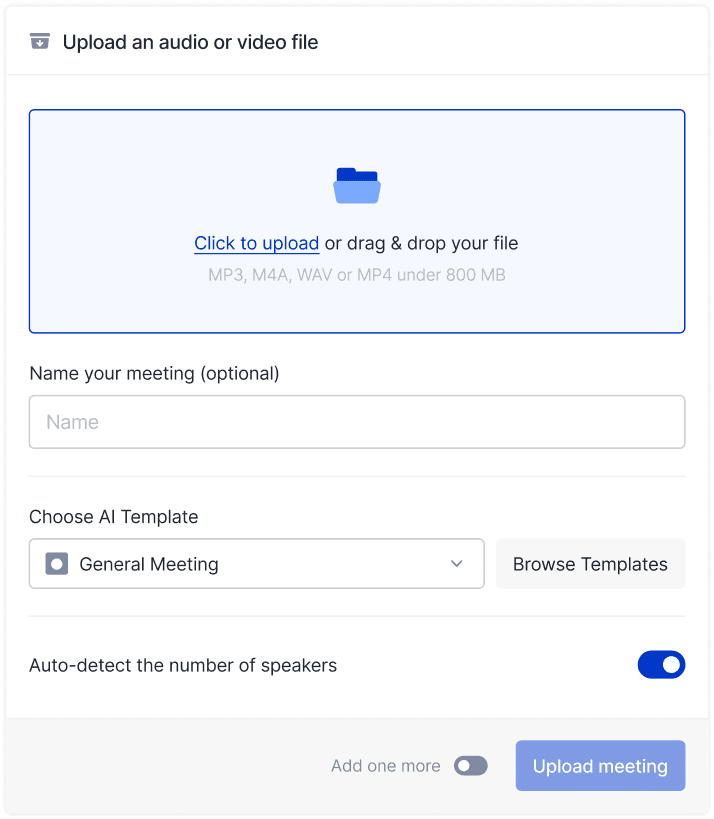
A template is a set of sections the AI uses to structure your meeting content. Instead of a generic summary, you get a document with blocks relevant to the meeting type: qualification criteria for a sales call, insights and quotes for a UX interview, captured commitments for an onboarding call.
Templates can be selected before or after a meeting. Switch at any point — the AI will regenerate the report under the new structure. Templates are tied to the workspace: every team member sees the same set and works from the same structure.
6 new templates: structure and use cases
MEDDIC
A template for deal qualification using the MEDDIC methodology. Sections: Metrics (what the client defines as success and how they measure it), Economic pain (current losses, their cost), Decision maker, Decision criteria, Buying process, Champion — the person inside the client's company who drives the deal.
Built for sales teams running complex deals who want to capture qualification data in a consistent format across all calls.
Customer check-in
A template for recurring check-in calls with existing clients. Sections: implementation status, open questions and issues, requests for new functionality or changes, agreed actions and next steps.
Built for CSM teams and account managers: keeps a running history per client so nothing falls through between meetings.
UX interview
A template for user research interviews. Sections: product usage context, direct user quotes, insights, behavioral patterns, hypotheses to test in future iterations.
Built for UX researchers and product teams — especially useful when running multiple interviews and comparing results across respondents.
PRD
A template for product requirements meetings. Sections: problem and context, feature goals, target audience, functional requirements, constraints and assumptions, open questions.
Built for product managers: captures requirements decisions directly from the meeting, no separate write-up needed.
Usability test
A template for usability testing sessions. Sections: tasks and scenarios, observations per step, pain points, conclusions and recommendations.
Built for UX designers and researchers: structures observations per task step and prepares the output for the team.
Client onboarding
A template for first meetings with new clients. Sections: client goals and expectations, current stack and processes, setup agreements, next steps and owners.
Built for CSM and implementation teams: documents the first meeting so all context is accessible to colleagues, not locked in one person's memory.
How to select and apply a template
Open the AI Reports section in the sidebar.
Choose a template from the list — before or after the meeting.
The AI applies the structure to the meeting recording and builds the report by section.
To change the structure — switch the template and the report will regenerate automatically.
Templates can be applied to any meeting, including past ones. To apply one template automatically to all new workspace meetings, set it as the default.
How templates work for teams
Templates are tied to the workspace. Every member sees the same set of built-in and custom templates — no personal settings that colleagues can't see.
Owners and managers can create custom templates and edit existing ones on Pro and Business plans. Open any built-in template through "Edit a copy" and adjust sections to fit your needs. All workspace members can apply any template to their meetings.
All built-in templates are available on every plan, including Free.
How teams use templates
Sales. Apply the MEDDIC template to a recorded sales call — get a report structured around deal qualification, with what was covered per block (metrics, decision maker, buying process) and what's still open. Useful for call review sessions and handoffs between reps.
Customer success. Apply the Customer check-in template to a recurring client call — get a document with implementation status, open requests, and agreed next steps. Each report becomes the starting point for the next call, context doesn't get lost.
UX research. Apply the UX interview template across a full series of user interviews — get insights and quotes in the same structure for every session. Compare results across respondents and surface patterns without combing through raw transcripts.
Product teams. Apply the PRD template to a product requirements meeting — get a document with the problem, goals, functional requirements, and open questions, ready to hand to engineering without a separate write-up.
Onboarding. Apply the Client onboarding template to a first meeting with a new client, or adapt a copy for new employee onboarding — get a document with goals, agreed first steps, and owners captured right after the meeting.
How to get started
All built-in templates are available on every plan, including Free.
Open Mymeet.аi and go to the AI Reports section in the sidebar.
Choose a template and apply it to your next meeting or any past one.
If you need a structure tailored to your team — open any template through "Edit a copy" and adjust the sections (available on Pro and Business).
To apply a template to all new workspace meetings automatically — set it as the default in workspace settings.
FAQ: AI report templates
1. Can I apply a template to a meeting that already happened?
Yes. Templates can be selected at any point — the AI will rebuild the report under the chosen structure. This works for any meeting in your library.
2. Can I switch templates multiple times?
Yes, as many times as you need. Each switch triggers a full regeneration under the new structure. One template is active at a time.
3. Are templates available on the free plan?
Yes, all built-in templates are available on every plan, including Free.
4. Who on the team can create or edit templates?
Owners and managers can create and edit templates on Pro and Business plans. All workspace members can apply any template to their meetings.
5. Can I adapt the MEDDIC template to my version of the methodology?
Yes. On Pro and Business you can open the template through "Edit a copy" and change the sections as needed — rename, add, or remove blocks.
6. Do templates work with meetings from any platform?
Yes — Zoom, Google Meet, Teams, Webex, and all other platforms supported by Mymeet.аi.
7. How does the AI know what goes into each section?
The AI reads the transcript and distributes content by meaning. In the MEDDIC template, lines about budget and losses go into Economic pain; lines about the approval process go into Buying process.
8. Will more templates be added?
Yes, we're planning to expand the library. If you have a request for a specific meeting type, write to hello@Mymeet.аi.
Radzivon Alkhovik