Meeting Tips

Andrey Shcherbina
·
Updated on

You held an important client meeting, discussed dozens of project details, and agreed on next steps. Three days later, you're trying to remember—what exact budget amount did you discuss? Who was supposed to send documents? By what date is the presentation needed? Without a meeting recording, half the information is lost forever.
Hi there! The mymeet.ai team helps thousands of companies record and analyze online meetings daily. Meeting recordings preserve every word of discussion and allow you to return to any conversation moment months later. We'll cover all methods for recording meetings on popular platforms, show how to automate the process, and discuss legal nuances.
Why Record Online Meetings
Meeting recordings solve three critical business communication problems.
Information is forgotten faster than it seems. Participants remember only half the discussion immediately after a meeting and less than a third after a week. Important agreement details fade from memory, exact wording is lost, objection nuances are forgotten.
Different understanding of agreements. After a meeting, one person remembers agreeing on a three million budget, another is certain it was two and a half million. Without a recording, it's impossible to verify who's right, disputes and misunderstandings begin.
Inability to share information. A colleague was on vacation or at another meeting, a new employee joined after an important discussion, a manager wants to understand how negotiations went. Retelling never conveys the full picture, details and context are lost.
Meeting Recordings for Sales Departments
A sales manager conducts ten client meetings weekly. Each meeting contains critical information—client needs, budget, objections, agreements on next steps. Recording everything manually during conversation is impossible, forcing a choice between active dialogue participation and taking notes.
Recording client meetings allows managers to fully focus on conversation. After the meeting, you can listen to the recording, restore exact objection wording, capture all discussed requirement details. Sales director analyzes recordings for team training—how to handle objections, which arguments work, where managers lose deals.
Interview Recordings for HR and Recruiting
A recruiter conducts five to seven interviews daily. A week later, they need to choose the best candidate from ten, but conversation details have already mixed in memory. Who exactly talked about microservices experience? Who had strong soft skills? What specifically did the candidate say about their motivation?
Interview recordings allow returning to any conversation moment a week later. You can review technical question answers, compare how different candidates explained their experience, show recordings to hiring managers for joint decision-making. HR director analyzes successful interview recordings to understand which questions best reveal needed competencies.
Planning Meeting and Technical Discussion Recordings
A project manager conducts team planning sessions, technical discussions, client meetings. Each meeting makes decisions, distributes tasks, discusses blockers. Keeping detailed minutes while simultaneously moderating discussion is physically impossible.
Team meeting recordings free managers from needing to write down every word. After the meeting, you can calmly listen to the recording, compile accurate minutes with correct decision wording, verify who exactly took on which task. The team receives accurate minutes instead of moderator's approximate recollections.
Research Interview Recordings
A researcher conducts in-depth interviews with product users. Each interview lasts an hour to an hour and a half and contains masses of insights about usage experience, problems, wishes. Manually transcribing an hour-long interview takes four to five hours of work.
Interview recordings with automatic transcription save dozens of hours on transcription. The researcher receives a text version of the interview minutes after completion, can quickly find needed quotes, compare different respondents' answers, identify patterns in feedback.
How to Record a Meeting in Zoom
Zoom offers built-in recording functionality with video, audio, and screen sharing saved. Zoom recordings are saved locally to computer or in cloud depending on settings.
Built-in Meeting Recording in Zoom
The meeting organizer or participant with recording rights can start the process at any moment during the call. All participants see notification when recording is active.
How to enable recording in Zoom:
During meeting, click "Record" button in bottom panel
Choose "Record on this Computer" or "Record to the Cloud"
All participants will see notification about recording start
To stop, click "Stop Recording" or "Pause"
Local recording saves file to computer in Zoom documents folder. Cloud recording is available only on paid plans and is saved on Zoom servers with access through web interface.
After meeting ends, Zoom automatically converts recording to MP4 video file and M4A audio. Conversion process takes from several minutes to half an hour depending on recording length.
Configuring Recording Rights in Zoom
By default, only the organizer can record meetings in Zoom. To give rights to other participants, the organizer must explicitly allow this during the call.
How to give recording rights to participant:
Click "Participants" in control panel
Hover cursor over needed participant's name
Click "More" → "Allow Record"
The participant receives notification and can start recording from their side. This is useful when the organizer can't record themselves or multiple independent meeting recordings are needed.
Zoom Recording Limitations
Zoom's built-in recording has several disadvantages for business use. It doesn't create automatic transcription in Russian—only English transcription is available and only on paid plans. Recording needs manual processing after meeting—cutting unnecessary parts, adding markers, transcribing content.
Cloud recording is limited by plan storage size. Free plan doesn't support cloud recording at all, paid plans give from one gigabyte per user. Recordings of several hour-long meetings quickly fill available space.
How to Record a Meeting in Google Meet
Google Meet supports built-in recording on corporate Google Workspace plans. Free Gmail accounts cannot record meetings with built-in tools.
Recording Through Google Workspace
Recording in Google Meet is available on Business Standard, Business Plus, Enterprise, and Education plans. Recordings automatically save to meeting organizer's Google Drive.
How to enable recording in Google Meet:
During meeting, click three dots in lower right corner
Select "Start recording"
Confirm recording start
Participants will see notification that meeting is being recorded
Recording stops automatically when last participant leaves meeting or manually through same menu. File appears in "Meet Recordings" folder in organizer's Google Drive within several minutes after ending.
Who Can Record Meetings in Google Meet
Recording rights in Google Meet depend on participant role and domain settings.
Can record:
Meeting organizer from same domain
Users with domain administrator rights
Participants whom organizer explicitly gave moderator rights
Cannot record:
Participants from other organizations
External guests without domain account
Participants on free Gmail accounts
Google Workspace administrator can restrict recording rights through domain settings. Check your organization's policies if recording function is unavailable.
Built-in Google Meet Recording Limitations
Google Meet recording doesn't create automatic transcription in Russian. Only English transcription and several other languages are available. Video file is saved without timestamps and chapter divisions—to find needed moment, you'll have to watch entire recording.
Recording doesn't include: individual participant chats, reactions and raised hands, participant screens if they weren't actively sharing, breakout rooms if meeting used this function.
How to Record a Meeting in Microsoft Teams
Microsoft Teams supports recording on all corporate plans. Recordings are saved to OneDrive or SharePoint depending on meeting type.
Built-in Recording in Microsoft Teams
Teams meeting recording is available to participants from same organization on corporate plans. Recording includes video, audio, screen sharing, and transcription.
How to start recording in Teams:
During meeting, click "More" (three dots)
Select "Start recording"
All participants will see notification about recording start
Recording automatically stops when meeting ends or can be stopped manually through same menu. File saves to organizer's OneDrive for regular meetings or SharePoint for channel meetings.
Automatic Transcription in Teams
Microsoft Teams creates automatic transcription for meeting recordings. Transcription appears together with video file and allows reading text version of conversation, searching by keywords, jumping to needed video moments by clicking on text.
Transcription supports English, Spanish, German, French, Chinese, and Japanese languages. Russian language is not yet supported by Teams' built-in transcription—third-party tools are needed for working with Russian-language meetings.
Meeting Recording Rights in Teams
Can record meetings in Teams: organizers, participants from same organization with appropriate rights, users with presenter role. External guests and participants from other organizations usually cannot start recording, but administrator can change these settings through Teams policies.
How to Record a Meeting in Yandex Telemost
Yandex Telemost is a Russian video conferencing platform without time limitations. Built-in recording is available in web version and desktop app.
Meeting Recording in Yandex Telemost
Built-in recording in Yandex Telemost is available to all users for free. Recordings save locally to organizer's computer.
How to enable recording:
During meeting, click recording button in bottom panel
Choose where to save file on computer
Participants will see notification about recording start
Recording saves in WebM format with video and audio from all participants. File is available immediately after stopping recording without additional conversion.
Yandex Telemost Recording Limitations
Yandex Telemost doesn't create automatic transcription of recordings. File saves only locally—there's no cloud storage for recordings. Third-party transcription services are needed to get text transcription.
Automatic Meeting Recording Through mymeet.ai
Built-in recording functions in platforms require manual enabling for each meeting. It's easy to forget to press the record button at the start of an important call. Automatic meeting recording solves this problem—the system connects to all scheduled meetings itself.
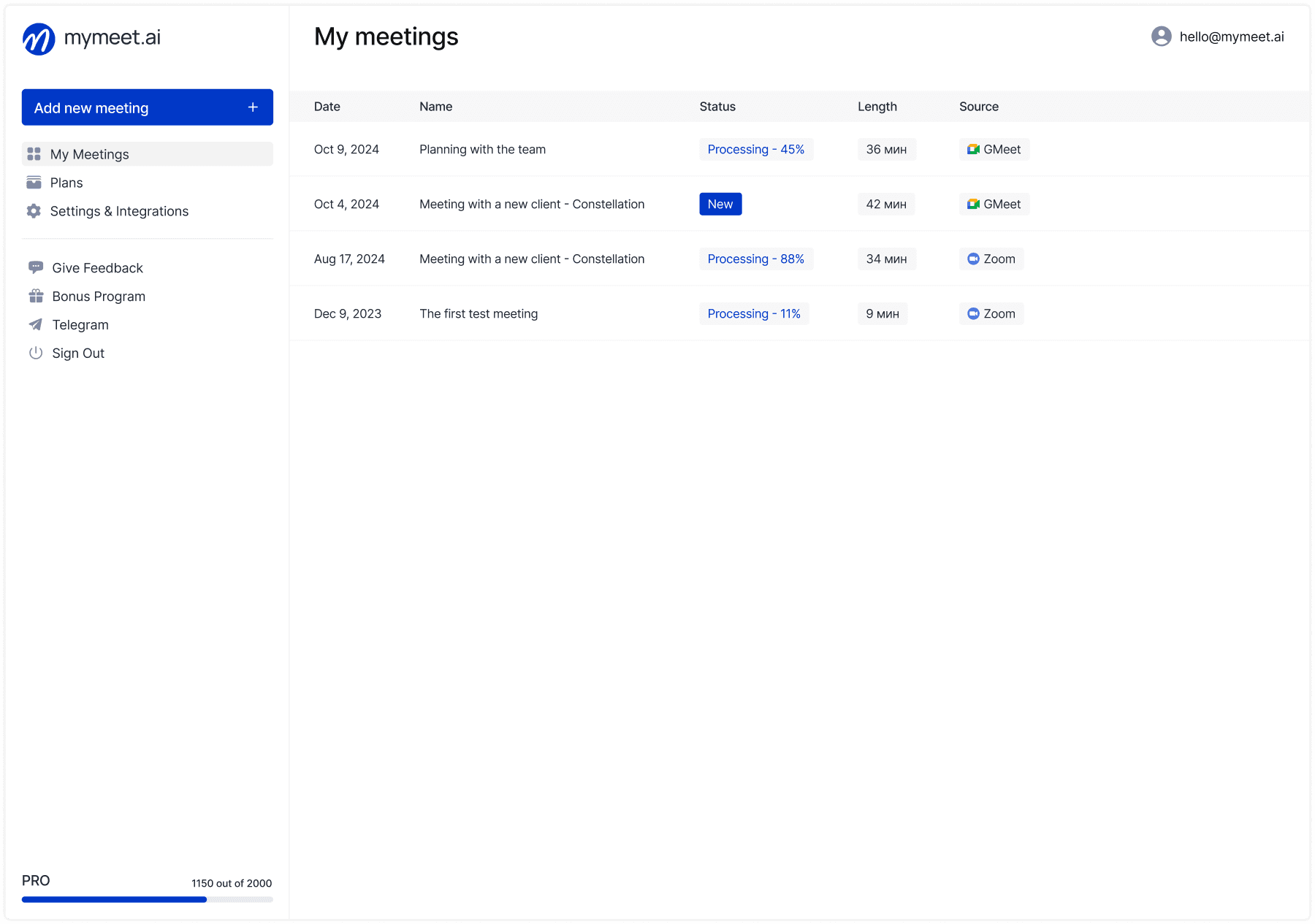
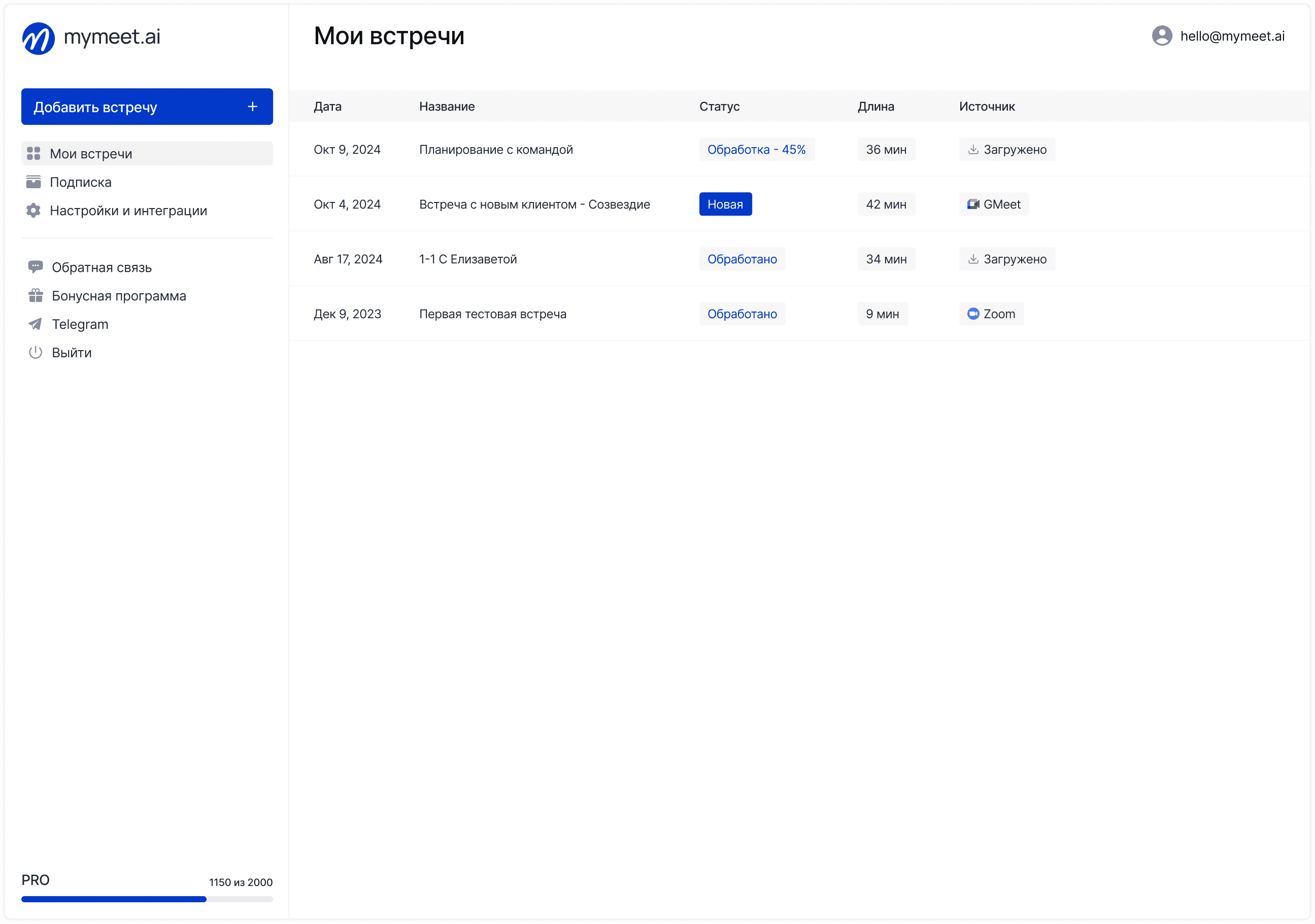
Mymeet.ai automatically records meetings from calendar, creates Russian transcription, and generates structured reports with decisions and tasks.
✅ Automatic calendar connection—bot joins all scheduled meetings
✅ Recording any platforms—Zoom, Google Meet, Microsoft Teams, Yandex Telemost, and others
✅ Russian transcription—accurate recognition with speaker separation
✅ Structured reports—automatic highlighting of decisions, tasks, agreements
✅ Search through recordings—find needed discussion moment in seconds through AI chat
✅ Secure storage—recordings on protected servers complying with Federal Law 152
Case Study: How BigDigital Saves 50 Hours on Meeting Documentation
Digital agency BigDigital with a team of 40 people conducted 80-100 meetings monthly—client presentations, internal planning sessions, strategic sessions. Managers forgot to enable recording on half of important meetings, lost discussion details, spent hours restoring agreements from memory.
Problem: Project managers manually enabled recording in Zoom but often forgot to press button at call start. If meeting wasn't recorded—details were lost forever. Recorded meetings needed manual transcription, taking 2-3 hours for each hour-long meeting.
Solution: Implemented mymeet.ai with automatic connection through Google Calendar. Bot joined all meetings automatically, recorded discussions, and created transcriptions with reports without manager participation.
Results: Saving 50 hours monthly on meeting documentation. Clients receive detailed reports 10 minutes after meeting. Manager analyzes recordings to improve objection handling. Not a single important agreement is lost anymore.
Legal Aspects of Recording Online Meetings
Meeting recording is regulated by personal data and privacy rights legislation. In Russia, Federal Law 152 on personal data protection is in effect, requiring participant consent to process their voice and image.
Consent for Meeting Recording
Participants must know the meeting is being recorded. All popular platforms automatically show notification about recording start to all meeting participants. This notification serves as information but doesn't replace explicit consent.
For correct meeting recording:
Warn in invitation that meeting will be recorded
Ask participant consent at call start verbally
Record participant consent in minutes or chat
Give opportunity to decline recording without consequences
External participants—clients, partners, interview candidates—have the right to refuse recording. Prepare alternative information capture method for such cases.
Storage and Use of Meeting Recordings
Meeting recordings contain participants' personal data—voice, image, expressed opinions. This data must be stored securely and used only for stated purposes.
Safe storage rules:
Limit recording access only to employees who need it for work
Use protected storage with data encryption
Set recording retention periods—delete when no longer needed
Don't transfer recordings to third parties without participant consent
Recordings can be used for meeting documentation, employee training, quality analysis, dispute resolution about agreements. Cannot publish recordings publicly, use for marketing purposes, transfer to competitors without explicit consent from all participants.
Recording Meetings with Clients and Candidates
Client meetings require special caution when recording. Client can refuse recording if not provided in contract or not agreed in advance.
For recording client meetings:
Include meeting recording clause in contract or confidentiality agreement
Warn about recording in meeting invitation in advance
Ask explicit consent at call start
Explain how recording will be used
Candidate interviews also require consent. Candidate has right to refuse recording, and this shouldn't affect evaluation of their candidacy. Better to get written consent for recording before interview starts.
Best Practices for Recording Online Meetings
Effective recording use requires not only technical setup but also proper processes for working with materials.
Warn About Recording in Advance
Informing participants about upcoming recording should happen before meeting starts, not at connection moment. Add recording information to meeting description in calendar, mention in email with agenda, write in corporate chat before call.
Participants should have opportunity to mentally prepare for being recorded. Sudden recording start announcement in meeting's first minute creates discomfort and reduces participant openness.
Structure Recording Storage
Organized recording storage saves time when searching for needed meeting months later. Create folder structure by projects, clients, meeting types. Use clear file names with date and meeting topic.
Example structure:
Client meetings / Client name / Date - Meeting topic
Internal planning sessions / Team name / Date - Topic
Interviews / Position / Date - Candidate name
Add metadata to recordings—participants, key topics, decisions made. This simplifies finding needed information without watching all recordings sequentially.
Delete Old Recordings
Infinite recording accumulation creates storage and data security problems. Establish retention rules—how long you store different types of recordings.
Recommended retention periods:
Client meetings—until project completion plus one year
Internal planning sessions—3-6 months
Interviews—until position closure or one year for successful candidates
Training meetings—permanently as knowledge base
Set up automatic deletion or archiving of old recordings. Regularly review archive and delete recordings that no longer carry value.
Alternative Meeting Recording Methods
Besides platforms' built-in functions and specialized services, other methods exist for recording online meetings.
Screen Recording Through OBS Studio
OBS Studio is free screen capture software. Can record any meeting regardless of platform and access settings.
OBS advantages: Works with any platforms, flexible video and audio quality settings, ability to add own elements to recording, recording multiple sources simultaneously.
Disadvantages: Requires program installation and setup, loads computer during recording, no automatic transcription, large recording file sizes.
Voice Recorder for Audio Recording
Audio recording via voice recorder on phone or computer is simple way to capture conversation without video. Suitable for phone calls or when only discussion content matters without visual part.
Advantages: Minimal device load, small file sizes, works without internet, ease of use.
Disadvantages: Visual information lost, screen sharing not recorded, quality depends on microphone, need to manually transcribe audio.
Recording Through Browser Extensions
Chrome and Firefox extensions allow recording meetings directly in browser. Examples: Loom, Screencastify, Awesome Screenshot.
Advantages: Don't require separate program installation, work on any operating system, simple management interface, cloud storage of recordings.
Disadvantages: Free plan limitations, not all extensions support Russian, may conflict with platform security policies.
Conclusion
Recording online meetings turns discussions into permanent information source instead of one-time event. Built-in functions in Zoom, Google Meet, Microsoft Teams, Yandex Telemost allow recording video and audio but require manual enabling for each meeting and don't create automatic Russian transcription.
Recording automation through specialized services saves time and guarantees no important meeting goes without capture. Transcription and structured reports make recordings truly useful—can find needed information in seconds instead of watching hour-long videos.
Ready to automate online meeting recording? Try mymeet.ai for free—180 minutes of automatic recording and transcription without card attachment.
Frequently Asked Questions About Recording Online Meetings
Can you record a meeting without participant consent?
Technically possible, but legally a violation of privacy and personal data rights. Federal Law 152 requires informed participant consent to process their voice and image. Always warn about recording in advance and obtain consent.
How to record a meeting if I'm not the organizer?
Ask organizer to give you recording rights or enable recording themselves. Alternative—use screen capture programs like OBS Studio or browser extensions for local recording on your computer.
Where are meeting recordings stored?
Zoom saves local recordings to your computer, cloud ones—to Zoom servers. Google Meet saves to Google Drive. Microsoft Teams—to OneDrive or SharePoint. Yandex Telemost—locally to computer. Check each platform's settings for exact location.
Can you record meetings on free plan?
Zoom allows local recording on free plan, cloud unavailable. Google Meet doesn't support recording on free Gmail accounts. Microsoft Teams requires corporate subscription for recording. Yandex Telemost gives recording to everyone for free.
How to get text transcription of meeting recording?
Use platform's built-in transcription if your language is supported, or specialized transcription services. Mymeet.ai automatically creates Russian transcription with speaker separation for any platforms.
How much space do meeting recordings take?
Hour-long HD video recording takes 500-800 MB. Audio only—50-100 MB. Platform cloud storages have limitations: Zoom gives 1 GB per user on basic plans, Google Drive depends on Workspace subscription.
Can you edit meeting recording?
Yes, all platforms save recordings in standard MP4 or WebM formats. Use video editors for cutting fragments, adding captions, improving sound. For simple trimming, online editors without program installation work.
How to share meeting recording with colleagues?
Cloud recordings in Zoom, Google Meet, Teams allow sharing link with access rights configuration. Local recordings need uploading to corporate storage or sending through file sharing. Ensure recipients have all meeting participants' consent for viewing.
Is screen sharing recorded?
Yes, all platforms record screen sharing if it was active during recording. Final video will show what presenter showed. Consider this—don't open confidential information with demonstration enabled on recorded meeting.
Can you automatically record all meetings in calendar?
Platform built-in functions require manual enabling for each meeting. For automatic recording of all meetings, use specialized services like mymeet.ai with calendar integration—bot connects to all scheduled meetings automatically.
Andrey Shcherbina