Product Updates

Andrey Shcherbina
·
Updated on

A few weeks into using mymeet.ai, your meeting list is manageable. A few months in - especially in a shared workspace - it's a different story. Dozens of recordings a week, multiple authors, multiple platforms. The one you need is somewhere in there, but scrolling to find it isn't the answer anymore.
We added search and filters to make finding any meeting fast. A few words from the title or a couple of clicks in the filter menu - that's all it takes.
What changed in meeting navigation
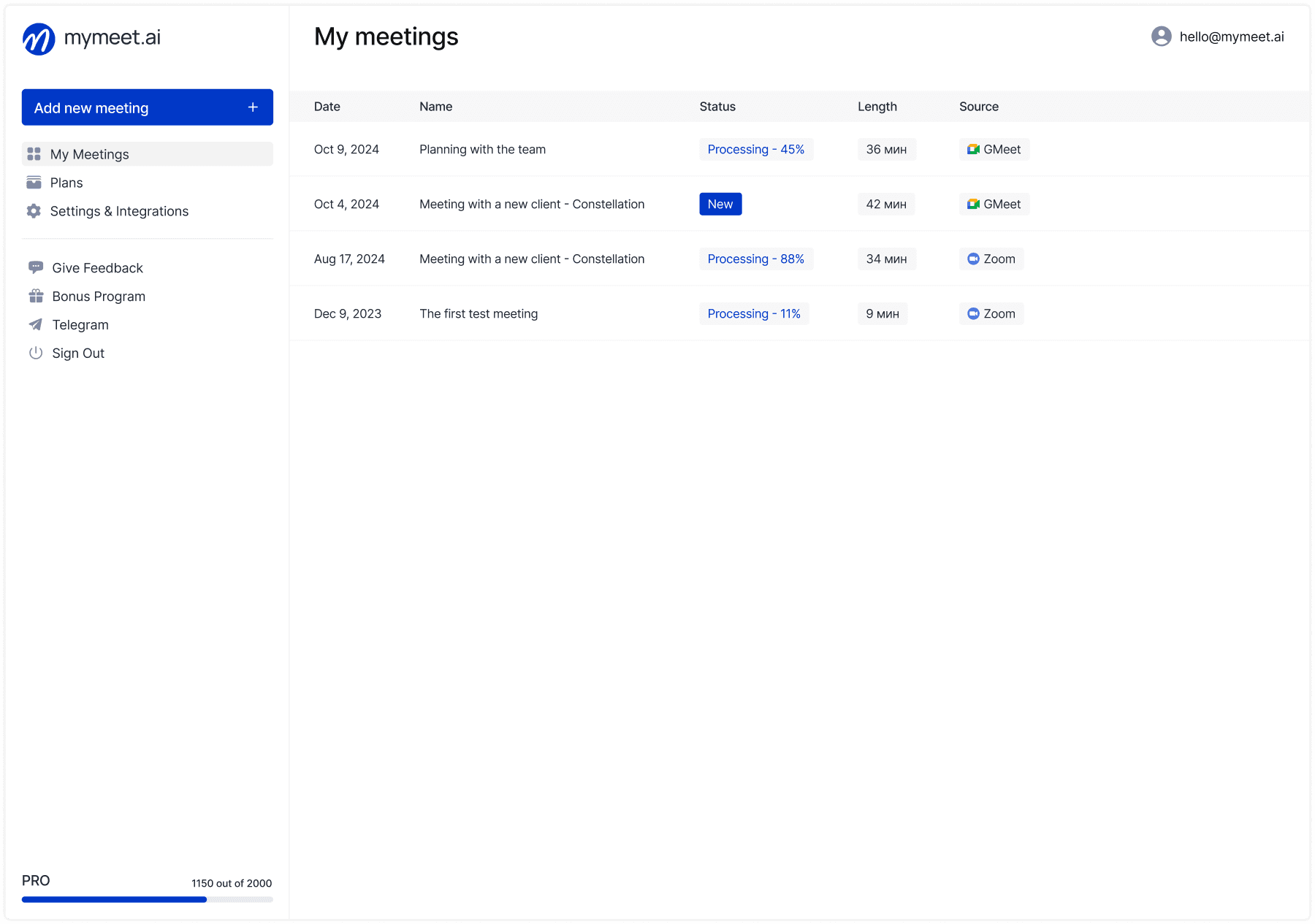
Until now, navigating your meetings in mymeet.ai meant using three tabs: All meetings, My meetings, and Shared with me. They answered one question - whose meetings to show - but gave no way to search or filter within each view.
Two new buttons now sit next to those tabs: search and filters. Search finds meetings by title. Filters narrow the list by parameters. Both work independently and can be used together.
Search meetings by title: find what you need in seconds
If you remember a few words from a meeting title, search will find it. It doesn't require an exact match and isn't case-sensitive.
How meeting search works in mymeet.ai
Click the search icon next to the tabs. An input field opens over the header, the tabs slide away. Start typing and the list updates with every match against meeting titles.
Search works on substring: typing "sync" will surface "Design sync", "Devsync", and "Weekly product sync". No need to remember the beginning of the title or the exact wording.
Results are grouped by date - Today, Yesterday, then specific dates - and sorted by start time within each group, most recent first. To close search, press Esc or click the X. If you navigate into a meeting and come back, the search stays open with the same query.
Search covers your full archive, including shared meetings
Search doesn't only look at your own meetings. It also covers meetings shared with you by teammates - the Shared with me section. In a team workspace, if the meeting you're looking for was recorded by a colleague and shared with you, search will find it.
Meeting filters: narrow by source, author, and date
When you don't remember the exact title but know the platform, the person, or the time period - that's what filters are for. Three parameters, combinable in any order.
Filter by source: only the platforms you've connected
Open filters and go to Sources. The list shows only the VC platforms connected to your account - Zoom, Google Meet, Microsoft Teams, and others you've set up. You can select multiple platforms at once; the list will show meetings from any of them.
Most useful when you know: "that call was definitely on Google Meet" or "all our client calls go through Zoom."
Filter by author: find a specific teammate's meetings
The Authors section lists everyone in your workspace who has meetings. Pick one person or several - the list filters to their recordings. Particularly useful in team workspaces where you have access to a colleague's shared meetings but need to isolate just their recordings from the full combined view.
Filter by date: scope to a specific time period
Set a date range using the calendar in the Date section. Click the start date, then the end date - the range highlights in between. Hit Apply and the list updates to that period.
When filters are active, a blue dot appears on the filter icon as a reminder. Clear filters resets everything at once.
How to combine search and filters for precise results
Using search and filters together gives you the most targeted results. Set a keyword in the search field and add filters for platform, author, and date - the final list satisfies all conditions at the same time.
Here's what that looks like in practice:
What you set | What you get |
Search "sync" | All meetings with "sync" in the title |
Filter: Google Meet | All Google Meet meetings |
"sync" + Google Meet | "Sync" meetings from Google Meet only |
"sync" + Google Meet + April | April Google Meet syncs |
Filters stay active between sessions until you clear them manually or switch workspaces. Configure a view once - it's there the next time you open meetings.
Search and filters in a team workspace
In team workspaces, search and filters run across the full archive - including Shared with me. You don't need to remember which tab a meeting lives under; results come from one combined source.
The Authors filter is especially useful here. Want to see all meetings from a specific colleague over the last month? Pick them in the filter, set a date range, done. No scrolling through a mixed team feed.
Filters also survive session changes. If every Monday you review the past week's team meetings, you set the filter once and just update the date range rather than rebuilding the whole configuration from scratch.
Who uses meeting search and filters, and how
Different teams use these tools for different jobs. Here's how they show up in practice.
Sales and account managers: full client call history in one search
Name your meetings with the client or company name and search becomes a relationship history tool. One query pulls every call with that client, regardless of how long ago. Add a source filter if you need to narrow to a specific platform.
Most useful before a follow-up call: pull up the full conversation history in under a minute.
HR and recruiters: all interviews for a role or candidate
Put the role title or candidate name in the meeting title and search by it to pull all interviews on that topic. Filter by author and date range to see a specific recruiter's calls for a given period.
Most useful for debriefs and when a role is being handed off between recruiters - no need to explain where the recordings are.
Product managers and designers: navigate the standup feed
Daily standups, design reviews, sprint planning - all in one workspace, all mixing together. Search "design review" or "sprint" to get the right cards immediately. Filter by author when you need a specific PM's or designer's meetings.
Most useful during onboarding and before retrospectives, when you need context on past discussions quickly.
Researchers: gather topic-specific recordings without manual review
Search by topic or project name to pull a corpus of relevant meetings. Add a date filter to scope the period. Add a source filter if the research is platform-specific.
Most useful for UX research and industry analysis - all the relevant recordings in one list, no manual scanning.
Consultants and educators: separate clients or courses without separate workspaces
Different clients on different platforms - filtering by source separates the archive. In education, searching by course or cohort name surfaces the full session history instantly.
Most useful for quarterly client reports and course handoffs between instructors.
Wrapping up
Search and filters don't change how you record meetings. They change how quickly you get back to the right one.
A few words from the title, a platform, a colleague, a date range - any of these gets you to what you need. Combined, they get you there precisely. And once your filters are set, they stay applied until you decide otherwise.
Available to all mymeet.ai users, including the free tier.
Frequently asked questions about meeting search and filters
How do I search for a meeting by title in mymeet.ai?
Click the search icon next to the meeting tabs. An input field opens - type a few words from the meeting title. Search is case-insensitive and works on substring, so partial matches show up.
Can I filter meetings by platform or source?
Yes. Open filters → Sources. Only the platforms connected to your account will appear. Select one or more, and the list will show meetings from any of them.
How do I find all meetings by a specific teammate?
Open filters → Authors and select the person you're looking for. The list will filter to their meetings only. Add a date range to narrow to a specific period.
How do I filter meetings by date range?
Open filters → Date. Click your start date, then your end date - the range highlights between them. Hit Apply and the list updates to that period.
Can I use search and filters at the same time?
Yes. Search and filters work together - results must match the search query and pass all active filters simultaneously.
Do filters stay active when I close the app?
Yes. Active filters persist until you clear them manually via Clear filters, log out, or switch workspaces.
Does meeting search look at transcripts or just titles?
Titles only. Transcripts, participants, and tags are not indexed in search.
Will search find meetings that were shared with me?
Yes. Search covers your full archive, including the Shared with me section.
How do I clear all active filters?
Open the filters menu and click Clear filters - all active conditions reset at once.
Which plan includes search and filters in mymeet.ai?
All plans, including the free tier - no card required.
Andrey Shcherbina