Product Updates

Andrey Shcherbina
·
Updated on

Meetings that live in your calendar are already handled: the bot joins the call, records the conversation, and by the end of the day the report is waiting in your workspace. That works for as long as the meeting is in the calendar and runs on a platform the bot can be invited to.
The rest of the working day looks different. A client sends a link to their company's internal platform, where outside services are not allowed. A colleague calls for "just five minutes", and those five minutes end in a decision nobody will recall word for word tomorrow. The conversations happened and the decisions were made, but none of it reached mymeet.ai — not because something broke, but because the bot can only go where it can be invited.
That is why we released the mymeet.ai desktop app. It records the conversation on your own device and sends the recording to the service, with no bot joining the call. Below: how it works, what it records, and what changes for a team.
What the desktop app is
It is a recorder: a program that captures audio during a call and sends the file to mymeet.ai. It is not a new version of the service and not a move out of the browser — your workspace, reports, AI chat, and settings stay exactly where they were. Only the recording part is installed on the computer.
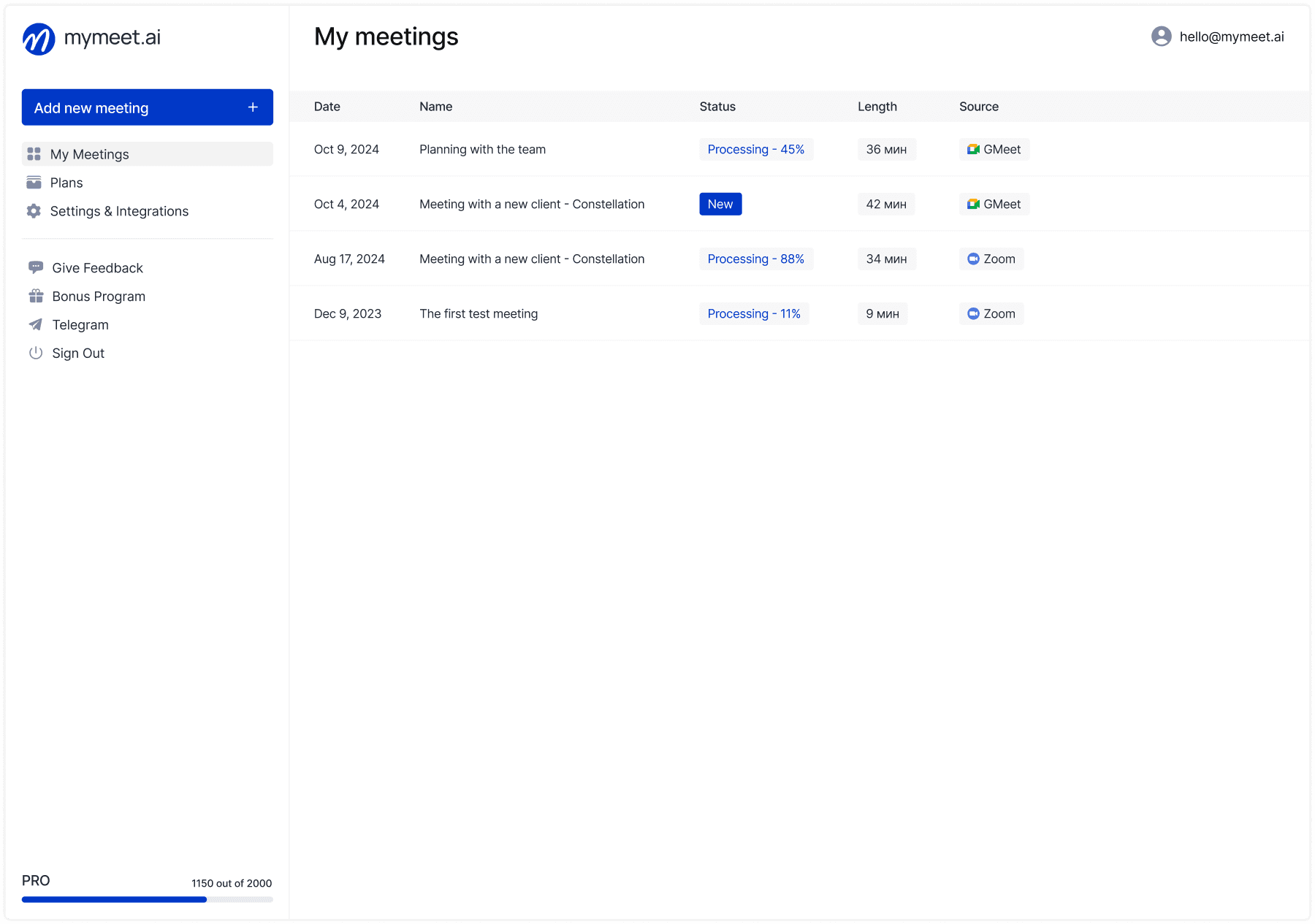
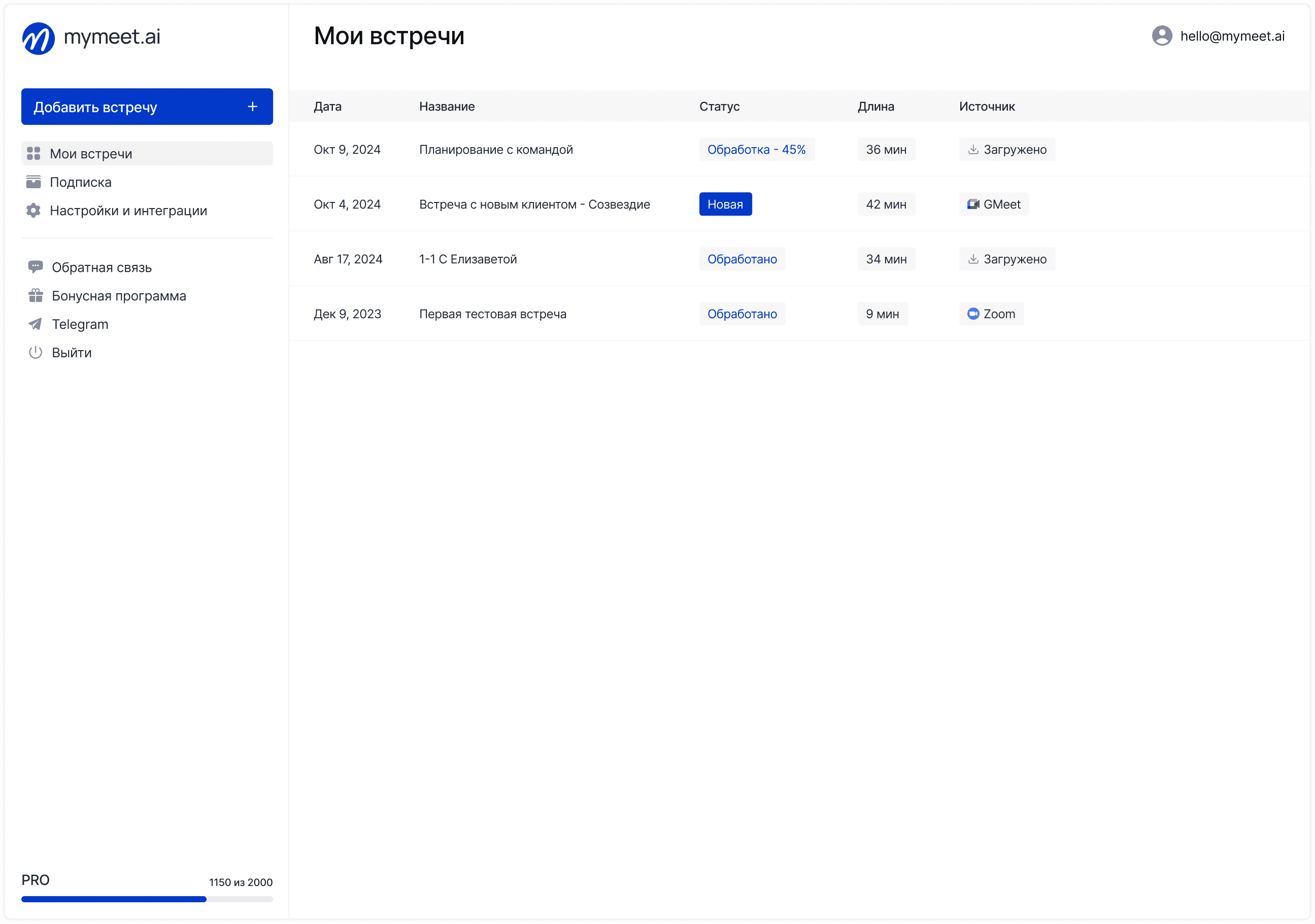
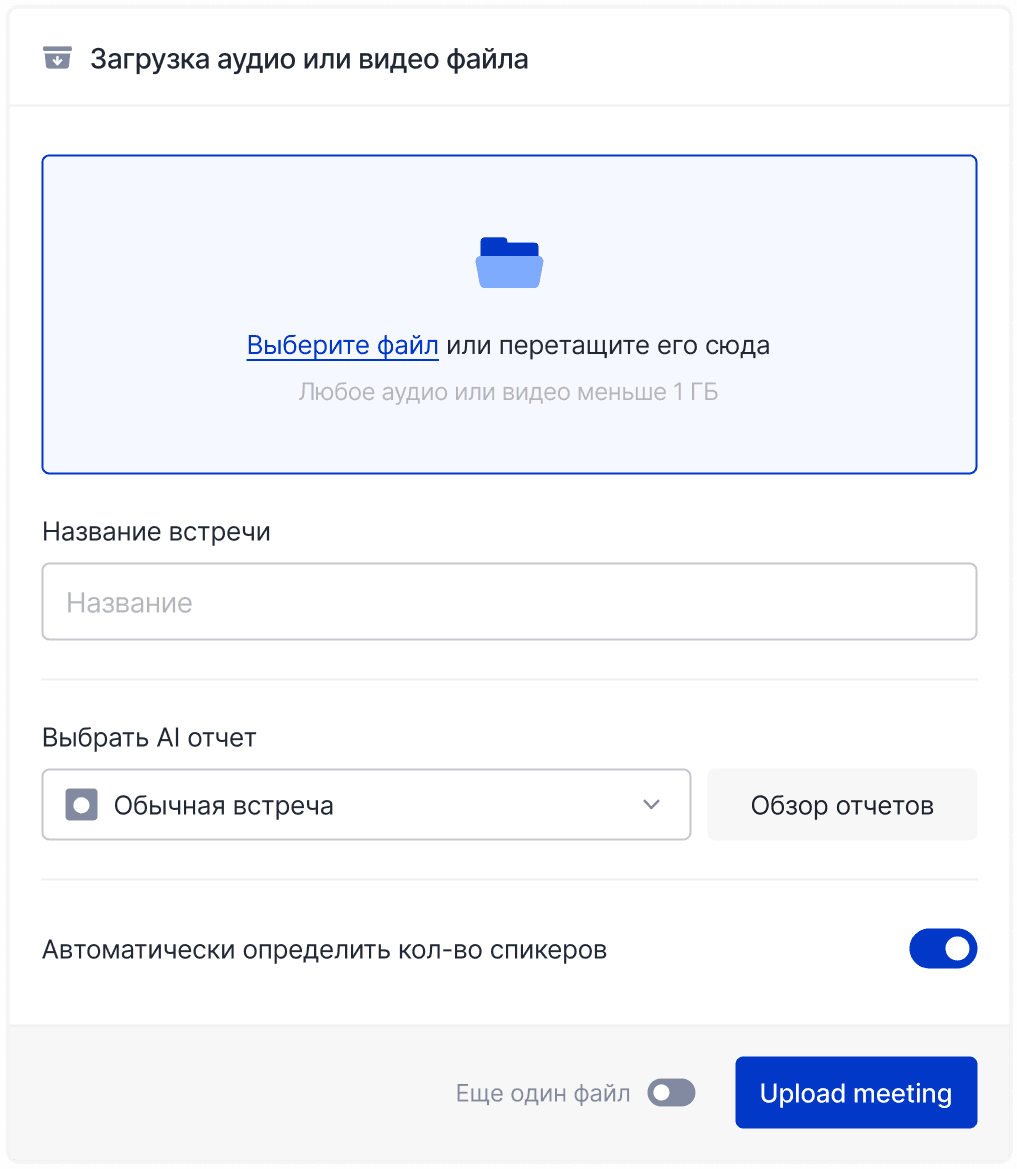
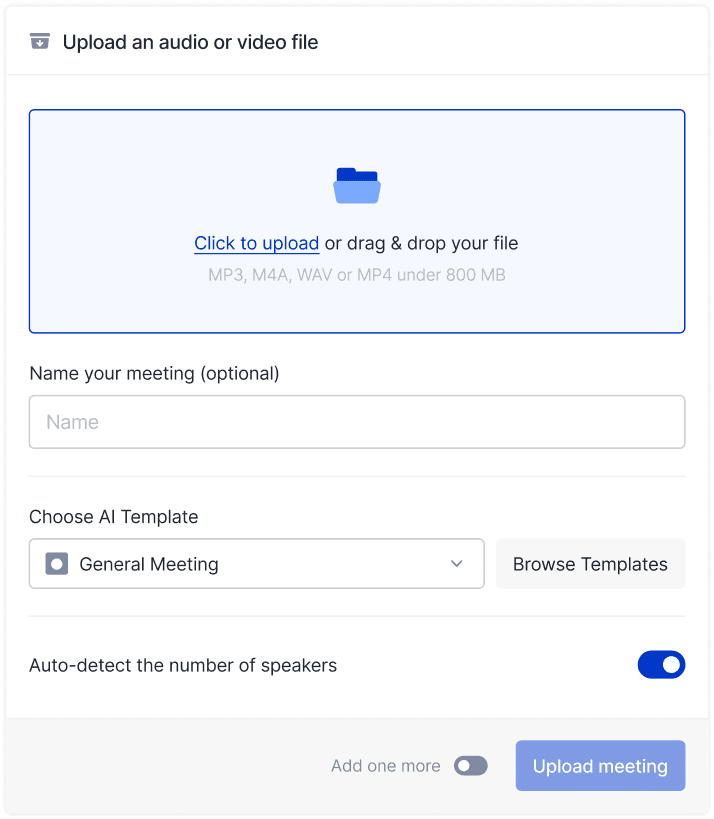
Until now, recordings reached the service in two ways: through the bot you invite into a conference, and by uploading a file. Now there are three routes running in parallel: the bot handles recurring calls from the calendar, the app handles a conversation on a client's closed platform, and a file upload handles a recording someone sent you.
The difference between the app and the bot is where the audio comes from. The bot joins the conference as a participant, so the platform has to support that. The app captures your computer's system audio and your microphone, so nothing is required of the platform: it plays the sound, and the app hears it.
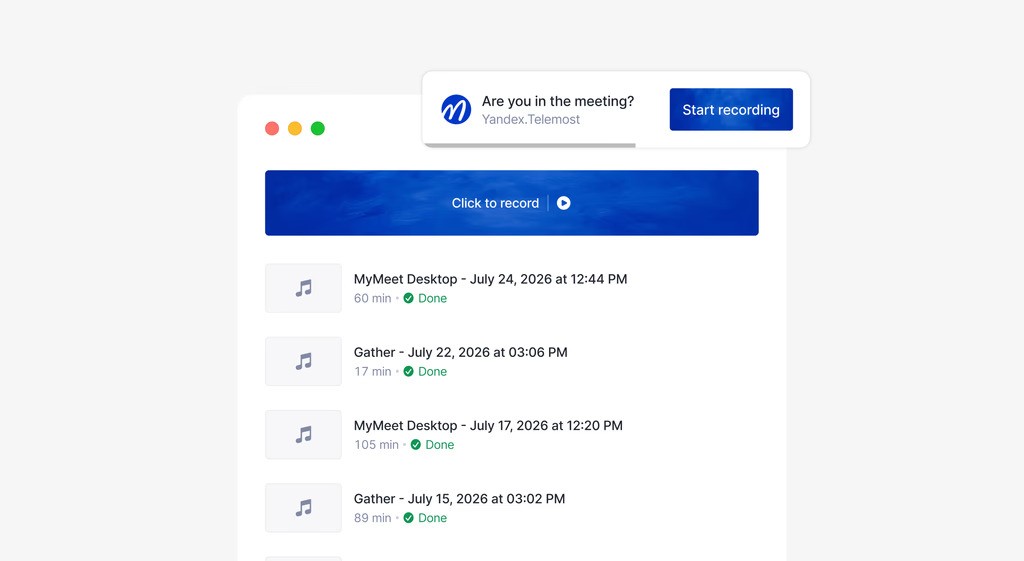
Installing and recording your first meeting
1. Download your build. The app page has four — macOS Silicon, macOS Intel, Windows 64-bit and 32-bit — and each button says who it is for. The same downloads are in your workspace, under "Desktop app".
2. Install it like any other program. On macOS, drag the app into Applications. On Windows, run the installer.
3. Sign in with your mymeet.ai account — the same one you use on the web. If you belong to several workspaces, the app asks which one your meetings should go to.
4. Grant system permissions. macOS asks for the microphone and screen recording; without them there is no audio. Windows may show an installer or antivirus warning. One-time step — after that the app runs in the background.
5. Start a call. The app detects the conversation and offers to record it. When the meeting ends, the recording goes to mymeet.ai, and everything downstream is unchanged: a transcript with speaker separation, a summary, decisions and tasks, and AI chat over the recording.
Automatic recording: when there is nothing to press
By default the app asks: it detects the call and offers to record it. But there is a mode the whole thing was built for — automatic meeting recording.
With it switched on, no human involvement is required: the app determines that a conversation has started, starts the recording, stops it when the call is over, and sends the file for processing. You hold your meetings the way you always did, and by the end of the day the reports are in your workspace. The app shows a notification when a recording starts and when it ends.
Automatic recording can be turned off. In the default mode the app offers, and the decision stays with you.
What the app records — and what it does not
It records audio: your voice from the microphone, everyone else's from system audio. That is why the platform does not matter — Yandex Telemost, Zoom, Google Meet, an internal corporate communication system, or a service mymeet.ai has no integration with.
It does not record video — neither the screen nor the camera. What reaches the report is the same as with bot recording.
It does not record phone calls — the app hears the computer, not the handset.
How it works across a team
The app is tied to the same account and workspace as the web version: a meeting recorded on an employee's laptop lands in the shared workspace under the same access rules as one recorded by the bot. Nothing extra to configure.
For a company, the meaningful change is not the number of clicks but which conversations are eligible for analysis at all: calls inside the corporate perimeter and conversations that started outside the calendar now count too. The same goes for client-side policy that keeps outside participants out of a call — recording from the employee's own device removes the question.
The app has no plan restrictions: it is available to every mymeet.ai user.
How teams use it
Sales. The client runs meetings only on their own corporate platform. The rep records from a laptop and reviews the call against the usual checklist, together with every other deal.
Recruiting. Candidates and agencies each arrive with a tool of their own. The interview still enters the common pipeline and is compared with other candidates against one structure.
Research. A respondent joins from an unfamiliar platform or a regional service with no integration. The interview is still transcribed and added to the material the team analyzes.
Product teams. Stand-ups happen on the company's internal platform. With automatic recording, the reports assemble themselves — nobody has to remember to record once the discussion is underway.
Consulting and education. A session runs on the client's platform or inside an institution's own system. Recording happens on the facilitator's computer, and the analysis keeps the same structure as every other session.
Getting started
Open the app page or the "Desktop app" section in your workspace.
Download the build for your system and install it.
Sign in with your mymeet.ai account and grant access to the microphone and system audio.
Hold your next call and open the report in your workspace.
The app is available to every user, with no plan restrictions. The free plan includes 180 minutes every month, with no card required.
Frequently asked questions
Do I still need to invite the bot if the app is installed? No. The app records audio on your device and sends the recording to mymeet.ai on its own. The bot remains available as a separate recording method, and you choose which one fits a given meeting.
Which plans include the desktop app? All of them. There are no plan restrictions and no separate charge for the app.
Does the app record video? No, audio only: your voice from the microphone and the other participants' voices from your device's system audio. Video is not recorded.
Will it record a meeting on a platform that has no mymeet.ai integration? Yes. Audio is captured on the device itself, so the platform does not need to support external services. Internal corporate communication systems work the same way.
Can it record a phone call? No. The app captures computer audio, so a call made on a mobile phone will not be part of the recording.
Which builds are available? Four: macOS Silicon for Macs on Apple M1-M4 and newer, macOS Intel for Macs on Intel processors, Windows 64-bit for most current computers, and Windows 32-bit for older or low-powered PCs.
Andrey Shcherbina