Meeting Tips

Fedor Zhilkin

You're leading a meeting in Google Meet and frantically searching for the mute button when you need to urgently mute yourself. Trying to start screen sharing but can't remember where the button is in the interface. Losing a few seconds on each simple action, and over an hour-long meeting, several minutes of pure time loss on clicks accumulate.
Hi there! The mymeet.ai team conducts hundreds of meetings in Google Meet daily and knows that keyboard shortcuts save time and make meeting management invisible to participants. Instead of searching for buttons with mouse—one key press and action is executed instantly. We'll cover all useful Google Meet keyboard shortcuts, show how to remember them, and explain when they're critically important.
Why Use Keyboard Shortcuts in Google Meet
Keyboard shortcuts—key combinations for executing actions without using mouse. Instead of clicking "Mute microphone" button, you press Ctrl+D and microphone instantly mutes.
Time Savings on Meeting Management
Each mouse action takes 2-3 seconds—find cursor, hover over button, click, wait for reaction. During hour-long meeting, you perform dozens of actions: turn microphone on/off, show screen, open chat, invite participant.
With mouse: 3 seconds × 30 actions = 90 seconds of pure time loss on management
With keyboard shortcuts: 0.5 seconds × 30 actions = 15 seconds
Savings may seem insignificant for one meeting, but with 20-30 meetings weekly, 25-30 minutes of saved time accumulate monthly.
Professional Appearance During Meetings
Imagine scenario: presenting to client, need to quickly mute microphone to answer colleague. Start moving mouse across screen searching for button, client sees cursor darting around presentation, discussion focus is lost.
With keyboard shortcuts simply press Ctrl+D—microphone off, nobody noticed anything, presentation continues without losing audience attention.
Especially critical for moderators of large meetings and speakers at webinars—management should be invisible and instant.
Reducing Cognitive Load
When leading important discussion, attention should be on conversation content, not technical details. Searching for interface buttons distracts, switches attention focus, interrupts thought.
Muscle memory for keyboard shortcuts works automatically without conscious effort. Fingers press needed combination themselves, brain stays focused on discussion.
Working Without Mouse for Productivity
Many professionals strive to minimize mouse use to increase work speed. Programmers, writers, analysts work predominantly with keyboard—hands don't leave keys, no unnecessary movements.
Google Meet keyboard shortcuts allow managing meeting in same style—hands on keyboard, fast command execution, no distractions to mouse.
Complete List of Google Meet Keyboard Shortcuts
Google Meet supports two dozen keyboard shortcuts for different actions. We'll cover all by categories from most important to specific.
Audio and Video Control
Most frequent actions at any meeting—turning microphone and camera on/off.
Ctrl + D (Windows/Linux) or ⌘ + D (Mac)—turn microphone on/off
Most important keyboard shortcut to remember first. Used dozens of times per meeting—mute yourself when not speaking, unmute when need to speak.
Ctrl + E (Windows/Linux) or ⌘ + E (Mac)—turn camera on/off
Useful when need to temporarily disable video—stepped out of frame, poor lighting, want to save bandwidth. One press instead of searching for button.
Important nuance: These keys work as toggles—if microphone is on, combination turns it off, if off—turns on.
Screen Sharing Control
Ctrl + Alt + S (Windows/Linux) or ⌘ + Option + S (Mac)—start/stop screen sharing
Critical for presentations and demonstrations. Instead of clicking "Present" and selecting window—one key combination opens selection dialog.
Feature: First press opens window to select what to share (entire screen, window, tab). Repeated press stops sharing.
Chat and Participants Control
Ctrl + Alt + C (Windows/Linux) or ⌘ + Option + C (Mac)—open/close chat
Quick access to meeting chat without searching for icon. Useful for moderators monitoring participant questions in chat during presentations.
Ctrl + Alt + P (Windows/Linux) or ⌘ + Option + P (Mac)—open participants panel
Shows list of all connected participants. Moderators use for controlling who's at meeting, managing participant permissions.
Ctrl + Alt + I (Windows/Linux) or ⌘ + Option + I (Mac)—open meeting information
Shows meeting details—invitation link, phone number for audio connection, meeting ID.
Meeting End and Navigation
Ctrl + Alt + E (Windows/Linux) or ⌘ + Option + E (Mac)—end meeting
Instant meeting end for organizer. Use carefully—ends meeting for all participants without confirmation.
Ctrl + Alt + L (Windows/Linux) or ⌘ + Option + L (Mac)—leave meeting
Exit meeting for regular participant. Meeting continues for others.
Tab and Shift + Tab—navigate interface elements
Moving between buttons and control elements from keyboard. Tab moves forward, Shift+Tab backward. Useful for fully keyboard-based control.
Space—activate selected element
After navigating to needed button via Tab, press space to "click" it.
Layout and Display Management
Ctrl + Alt + F (Windows/Linux) or ⌘ + Option + F (Mac)—toggle fullscreen mode
Expand meeting to full screen for maximum concentration. Repeated press returns normal window size.
Ctrl + Alt + 1/2/3/4 (Windows/Linux) or ⌘ + Option + 1/2/3/4 (Mac)—switch layouts
Quick switching between participant display modes:
1—auto layout
2—tiled (all participants equal size)
3—spotlight (active speaker large)
4—sidebar
Special Moderator Functions
Ctrl + Alt + M (Windows/Linux) or ⌘ + Option + M (Mac)—mute all participants
Available only to meeting organizers and moderators. Instantly mutes all participants—useful for webinars when need silence during presentation.
Important: Participants can unmute themselves if needed. This is not blocking, but mass muting.
Automating Google Meet Work Through mymeet.ai
Keyboard shortcuts speed up meeting management but don't solve documentation problem. Need to record discussions, capture decisions, distribute tasks—this requires time after meeting.
Mymeet.ai automates all work with meeting content while you focus on discussion.
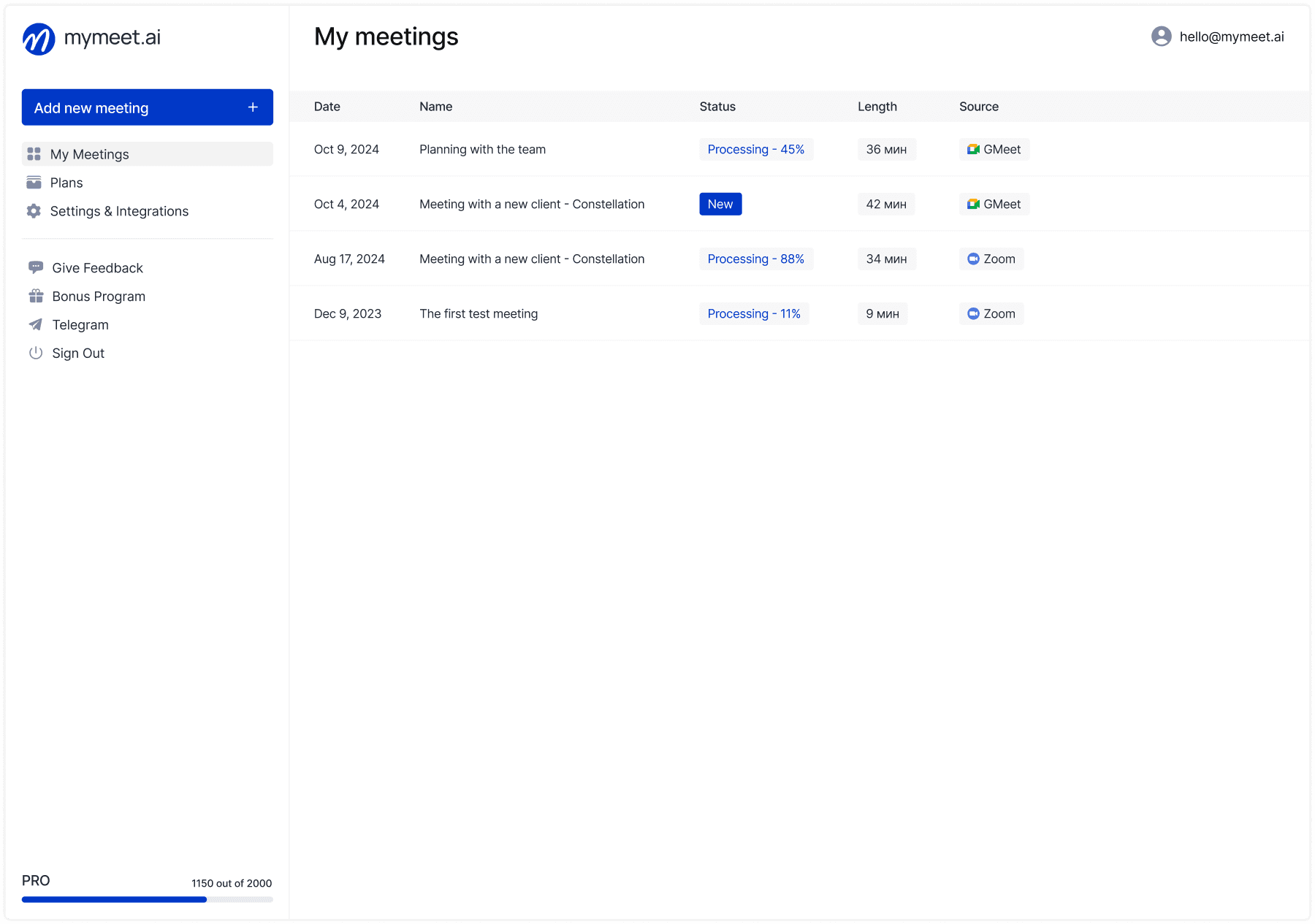
✅ Automatic Google Meet connection—bot joins on schedule from calendar
✅ Recording and transcription—complete Russian text transcript
✅ Task and decision extraction—AI finds all agreements automatically
✅ Specialized reports—11 templates for different meeting types
✅ AI chat about meetings—search any information from past discussions
✅ Google Calendar integration—meetings enter system automatically
How Google Meet Integration Works
Connect Google Calendar to mymeet.ai once. System sees all scheduled Meet meetings.
Before meeting bot automatically gets link and joins as regular participant named "mymeet.ai recorder."
During meeting you manage discussion using keyboard shortcuts, bot quietly records in background.
After meeting receive structured report with transcription, decisions, tasks in 10 minutes.
Combination of keyboard shortcuts for management + AI for documentation = complete focus on meeting content without information loss.
Reference Guide for All Google Meet Keyboard Shortcuts
Complete table of all available key combinations for quick search of needed command. Save this table as cheat sheet or print for quick access.
Basic Meeting Control Commands
Action | Windows/Linux | Mac |
|---|---|---|
Turn microphone on/off | Ctrl + D | ⌘ + D |
Turn camera on/off | Ctrl + E | ⌘ + E |
Leave meeting | Ctrl + Alt + L | ⌘ + Option + L |
End meeting (organizer) | Ctrl + Alt + E | ⌘ + Option + E |
Screen Sharing and Content
Action | Windows/Linux | Mac |
|---|---|---|
Start/stop screen sharing | Ctrl + Alt + S | ⌘ + Option + S |
Show/hide captions | Ctrl + Alt + K | ⌘ + Option + K |
Turn recording on/off (if available) | Ctrl + Alt + R | ⌘ + Option + R |
Interface Navigation
Action | Windows/Linux | Mac |
|---|---|---|
Open/close chat | Ctrl + Alt + C | ⌘ + Option + C |
Open participants panel | Ctrl + Alt + P | ⌘ + Option + P |
Open meeting information | Ctrl + Alt + I | ⌘ + Option + I |
Show keyboard shortcuts list | Ctrl + / | ⌘ + / |
Go to next element | Tab | Tab |
Go to previous element | Shift + Tab | Shift + Tab |
Activate selected element | Space | Space |
Display Management
Action | Windows/Linux | Mac |
|---|---|---|
Fullscreen mode | Ctrl + Alt + F | ⌘ + Option + F |
Auto layout | Ctrl + Alt + 1 | ⌘ + Option + 1 |
Tiled layout | Ctrl + Alt + 2 | ⌘ + Option + 2 |
Spotlight layout | Ctrl + Alt + 3 | ⌘ + Option + 3 |
Sidebar layout | Ctrl + Alt + 4 | ⌘ + Option + 4 |
Moderator Functions
Action | Windows/Linux | Mac |
|---|---|---|
Mute all participants | Ctrl + Alt + M | ⌘ + Option + M |
Remove participant | No shortcut | No shortcut |
Pin participant | No shortcut | No shortcut |
Special Functions
Action | Windows/Linux | Mac |
|---|---|---|
Raise/lower hand | Ctrl + Alt + H | ⌘ + Option + H |
Enable background blur | No shortcut | No shortcut |
Switch virtual background | No shortcut | No shortcut |
Enable noise cancellation mode | No shortcut | No shortcut |
Note: Some Google Meet functions don't have keyboard shortcuts and are only available through graphical interface. Google periodically adds new shortcuts in updates.
How to Use This Table
Print the table and keep near workspace for first weeks using keyboard shortcuts.
Highlight with marker commands you use most often—microphone, camera, screen sharing.
Check relevance by pressing Ctrl+/ (or ⌘+/) during meeting—Google Meet will show built-in help with current shortcut list.
How to Remember Google Meet Keyboard Shortcuts
Two dozen key combinations are hard to remember at once. Gradual implementation strategy works better than trying to learn everything at once.
Starter Set: Three Critical Keys
Start with most frequent actions you perform at every meeting.
Week 1: Use only Ctrl+D for microphone. Force yourself to press keys instead of mouse clicking. After week, this will become habit.
Week 2: Add Ctrl+E for camera. Now you control microphone and camera from keyboard automatically.
Week 3: Master Ctrl+Alt+S for screen sharing if you present often.
After three weeks, basic meeting management works automatically without conscious effort.
Extended Set for Moderators
If conducting meetings as organizer or moderator, add these keys:
Ctrl+Alt+C for chat—monitor participant questions
Ctrl+Alt+P for participants panel—control who's at meeting
Ctrl+Alt+M for mass microphone muting at webinars
Combination Logic
Google Meet uses pattern: Ctrl+Alt (or ⌘+Option on Mac) + action letter.
Chat—chat
Screen—screen sharing
People—participants
Info—information
End—end meeting
Logic helps guess needed combination even if you don't remember exactly.
When Keyboard Shortcuts Are Critically Important
Some situations require instant reaction where each second searching for button creates awkwardness.
Conducting Presentations and Webinars
Speaker at webinar for 50 participants switches between slides, explains material, monitors time. Suddenly colleague enters room with question—need to instantly mute microphone.
Ctrl+D works in half-second without distraction from presentation. Searching for button with mouse would take 3-5 seconds during which entire audience hears extraneous conversation.
Urgent Situations During Meetings
Leading important negotiations with client, suddenly loud construction starts outside window. Each second of noise on air damages professionalism.
Keyboard shortcut turns off microphone instantly. With mouse, would have lost several seconds while client hears drill.
Moderator Multitasking
Moderator of large meeting simultaneously monitors chat, controls participant list, manages speaker queue, participates in discussion themselves.
Constant switching between interface elements with mouse slows work. Keyboard shortcuts allow opening chat, checking messages, returning to participants in couple seconds without losing focus.
Working with Multiple Monitors
One monitor has Google Meet with participants, second has documents or presentation. To mute microphone with mouse, need to switch to Meet window, find button, click.
With keyboard shortcuts no need to switch between windows—Ctrl+D works even when focus is on another monitor (if Meet is open in background).
Keyboard Shortcut Limitations and Features
Not everything works perfectly—there are nuances you need to know.
Conflicts with System Keys
Some Google Meet combinations conflict with Windows or Mac system keyboard shortcuts.
Ctrl+E in some programs opens search. If Google Meet is in background—command from another program may trigger instead of camera toggle.
Solution: Keep Google Meet tab active when need to manage meeting, or use desktop app that better intercepts keys.
Working in Different Browsers
Keyboard shortcuts work best in Google Chrome—officially supported browser for Meet. In Firefox, Safari, Edge, most keys work but may have glitches.
Some users report part of combinations don't work in Safari on Mac. If encountering problems—try Chrome.
Mobile Applications
Keyboard shortcuts work only in browser and desktop version of Google Meet. Mobile apps for iOS and Android don't support keyboard shortcuts—management only through touch interface.
If often conducting meetings from phone—will have to use regular on-screen buttons.
Conclusion
Google Meet keyboard shortcuts save time and make meeting management professional and invisible. Basic set of three combinations—Ctrl+D for microphone, Ctrl+E for camera, Ctrl+Alt+S for screen sharing—covers 90% of actions in typical meeting.
Start with one key and implement gradually. In a month, meeting management will enter muscle memory and happen automatically, freeing attention for discussion content.
Documentation automation through mymeet.ai complements keyboard shortcuts—you quickly manage meeting, AI captures all discussion. Try mymeet.ai for free—180 minutes of automatic meeting recording without card attachment.
Frequently Asked Questions About Google Meet Keyboard Shortcuts
Do keyboard shortcuts work on Mac?
Yes, all keyboard shortcuts work on Mac with Ctrl replaced by ⌘ (Command) and Alt by Option. For example, to mute microphone on Mac use ⌘+D instead of Ctrl+D on Windows.
Can you customize Google Meet keyboard shortcuts?
No, Google Meet doesn't allow customizing keyboard shortcuts. Combinations are hard-coded by developers and not configurable. Must use standard set.
Why don't keyboard shortcuts work for me?
Check: (1) Google Meet tab is active—shortcuts don't work if focus is on another window, (2) Using supported browser—Chrome works best, (3) No conflicts with browser extensions intercepting same combinations, (4) English keyboard layout—some keys don't work on Russian layout.
Are there keyboard shortcuts in Google Meet mobile app?
No, mobile apps of Google Meet for iOS and Android don't support keyboard shortcuts. Management only through touch interface. Keyboard shortcuts work only in browser and desktop version.
How to quickly remember keyboard shortcuts?
Use gradual implementation strategy: first week only Ctrl+D for microphone, second add Ctrl+E for camera, third—Ctrl+Alt+S for screen. Force yourself to use keys instead of mouse until becomes habit. In a month, basic set becomes automatic.
Which keyboard shortcuts are most important?
Top 3 essential: (1) Ctrl+D—microphone, used dozens of times per meeting, (2) Ctrl+E—camera, useful for all participants, (3) Ctrl+Alt+S—screen sharing for presenters. These three combinations cover most actions.
Can you use keyboard shortcuts when sharing screen?
Yes, keyboard shortcuts work even during screen sharing. Can mute microphone via Ctrl+D or stop sharing via Ctrl+Alt+S without switching to Meet window.
How does moderator control participant microphones?
Ctrl+Alt+M mutes all participants simultaneously (organizer only). Participants can unmute themselves—this is not blocking. To control specific participant's microphone, use participants panel and click microphone icon next to their name.
Do shortcuts work in Google Meet on iPad with keyboard?
Partially. iPad with connected keyboard supports some keyboard shortcuts through browser version of Google Meet (not app). But operation is unstable—better to use full computer for reliability.
How to view list of all keyboard shortcuts directly in Google Meet?
Press Ctrl+/ (Windows) or ⌘+/ (Mac) during meeting—window opens with list of all available keyboard shortcuts. This is built-in cheat sheet you can open anytime for quick reminder.
Fedor Zhilkin